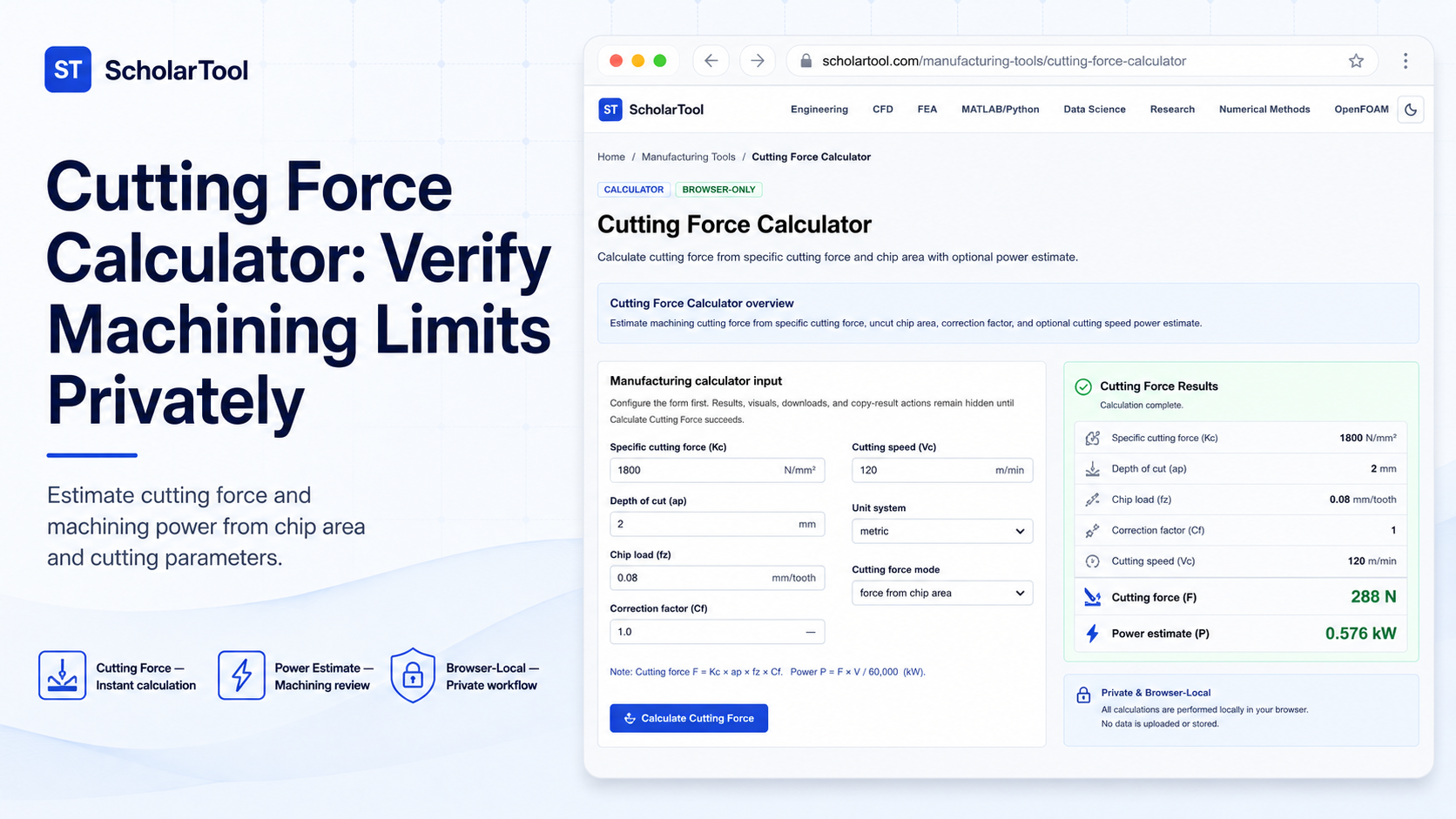
Cutting Force Calculator: Settle Tooling Loads Privately
When designing a milling or turning setup, estimating the mechanical load on your machine spindle and workholding is a critical step. Machining metals generates significant mechanical resistance, and failure to predict these loads can lead to tool breakage or severe part deflection. Guessing cutting loads without a validated calculation leads to expensive spindle repairs, ruined cutters, or scrapped workpieces.
To solve this setup bottleneck with complete privacy, I use the Cutting Force Calculator on ScholarTool. This browser-only utility calculates cutting force from specific cutting force and chip area. Because all calculations run locally in your browser using client-side TypeScript, your proprietary parameters are never uploaded to an external server, ensuring 100% data privacy.
What the Cutting Force Calculator Helps You Do
This calculator acts as a steady-state process planning takeoff aid. Rather than forcing you to calculate values manually, it structures standard metal-cutting load formulas into a clean layout.
What I find useful here is how the calculator lets you toggle between direct uncut chip area input and depth times chip-load mode. You can choose to find your cutting force from a known chip area or reverse-calculate limits. It provides an immediate math receipt to check your toolholder and fixture limits before G-code programming or shop floor execution.
Comparative Perspective: Static Handbooks vs. Interactive Math
In traditional machine shops, cutting forces are often estimated using general multipliers from static handbook tables. While highly valuable, these static reference numbers fail to capture the specific chip geometry of thin finishing cuts.
Using an interactive calculator bridges the gap. It combines specific cutting force equations with a responsive layout. By allowing you to adjust correction factors dynamically for worn tools, it provides a realistic load estimation.
Inputs You Can Use
The interface features a structured, configuration-first layout:
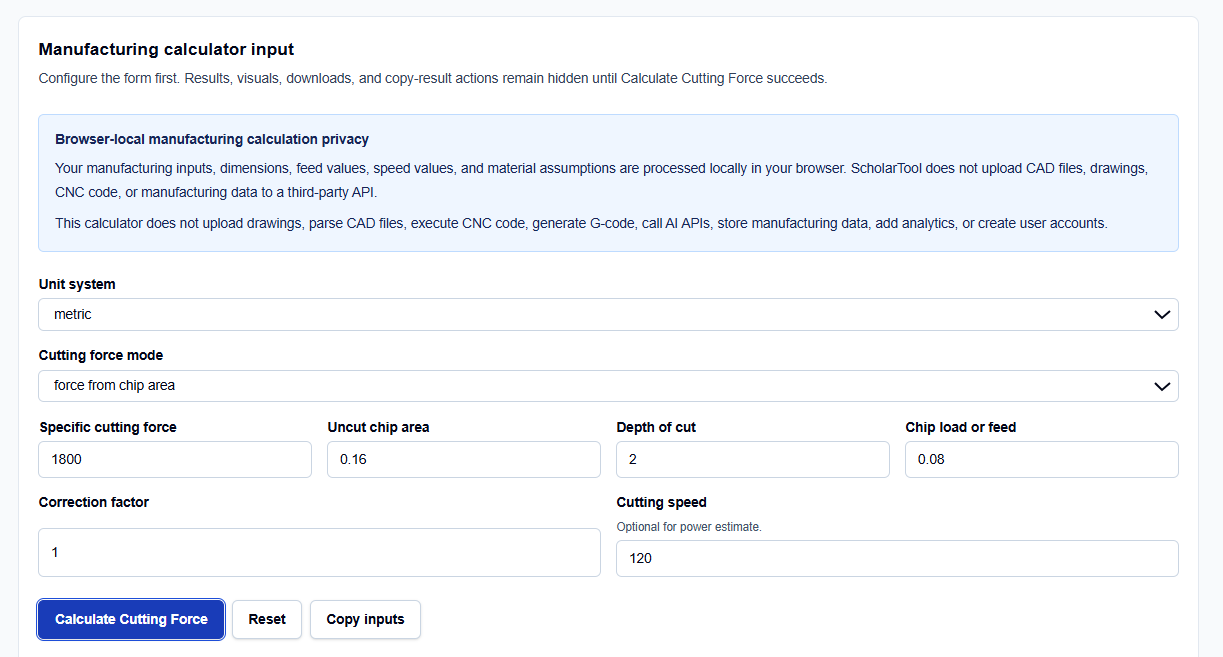
- Unit System & Mode: Select metric or inch and choose either ‘force from chip area’ or ‘milling-style chip area’ mode.
- Material Geometries: Enter specific cutting force (kc), uncut chip area, or depth of cut and chip load.
- Safety & Power: Enter correction factor and optional cutting speed (Vc) for power calculation.
If your data is available in this form, you can enter the raw cut parameters and tool feeds directly.
How I Use the Tool
I open the Cutting Force Calculator in my browser window and choose the default unit standard.
When I enter our raw material factors, I verify that our specific cutting force corresponds to the material grade.
Once configured, click Calculate Cutting Force. The result section helps you review computed forces instantly. Results remain hidden until this succeeds. If you edit any input afterward, the output panel automatically hides to prevent transcribing stale values.
Understanding the Results
The result section helps you verify your mechanical limits by presenting several key elements:
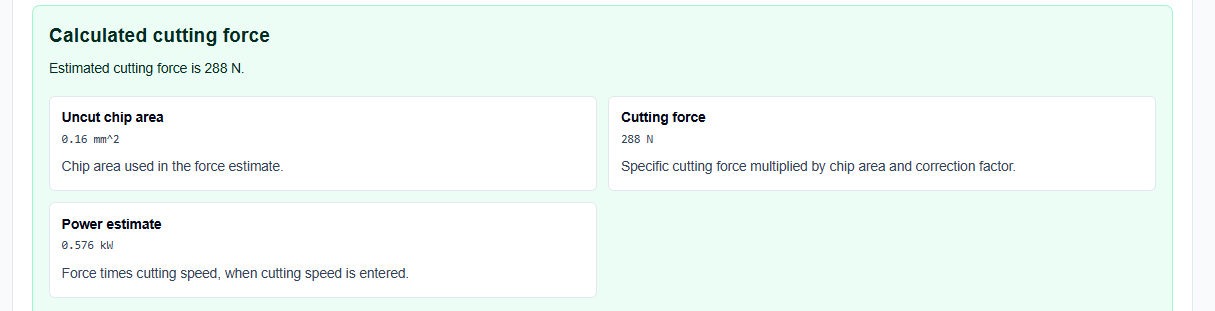
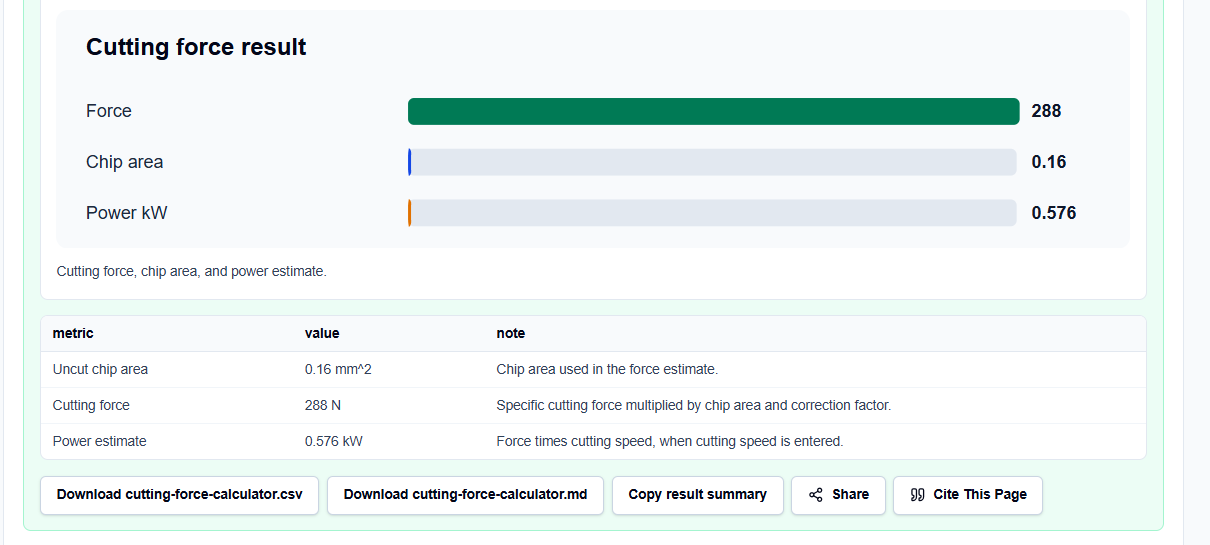
- Calculated Values: Displays calculated chip area, cutting force (Fc), and optional spindle power estimate.
- Data Export: Formats the complete calculation block into copyable Markdown or downloadable CSV files.
The calculator does not model dynamic tool deflection, multi-tooth engagement, or chatter, keeping calculations highly responsive.
A Practical Example: Sizing a Metric Milling Setup
Consider a typical check to find the cutting force and power for a metric milling operation.
We configure: metric units, milling-style mode, 2 mm depth of cut, 0.08 mm chip load, a specific cutting force of 1800 N/mm², 120 m/min cutting speed, and a correction factor of 1.
Upon clicking calculate, the browser-local script applies standard equations. The result section helps you verify a cutting force of 288 Newtons and a 0.576 kW power estimate.
Mistakes I Would Avoid
One critical mistake is using material tensile strength directly as specific cutting force. Specific cutting force is highly process-dependent and significantly higher than tensile strength, so using tensile strength will severely underestimate your tool loads.
Another major pitfall is ignoring the correction factor for interrupted cuts. Interrupted cuts or worn tools generate significantly higher peak forces, and omitting a safety margin can lead to catastrophic toolholder or spindle failure.
Finally, avoid treating the power estimate as spindle load certification. This calculator solves for steady-state cutting power at the tool tip; it does not model machine efficiency losses or spindle torque curves.
Try the Free Cutting Force Calculator
To eliminate manual geometric conversion errors and secure your shop data, try this secure tool today:
Try the Cutting Force Calculator on ScholarTool
Chaining this check completes your planning. You can also evaluate parameters using our CNC Feed and Speed Calculator or Material Removal Rate Calculator. Reviewing cutting speeds with the Milling Speed Calculator or lathe operations with the Turning Speed Calculator finishes your review.
FAQ
1. Does the Cutting Force Calculator correct for chip thinning, radial engagement, or dynamic chatter?
No. This tool calculates steady-state tool forces based on standard deterministic specific cutting force equations. Complex compensations for dynamic multi-tooth engagement, radial chip thinning, tool deflection, wear curves, or chatter stability lobes are unsupported.
2. Are my proprietary material factors, feeds, or spindle limits uploaded to ScholarTool?
No. All calculations are executed entirely locally on your device within your active browser tab using client-side TypeScript logic. ScholarTool does not upload drawings, CAD files, G-code, or coordinates to external servers or third-party APIs.
3. Why do the output results automatically clear if I modify an input value?
This is a built-in safety safeguard. If you edit any specific cutting force, area, depth, or feed rate, the results card automatically hides until you click “Calculate Cutting Force” again. This prevents you from copying outdated or inconsistent data into your CAM programs.