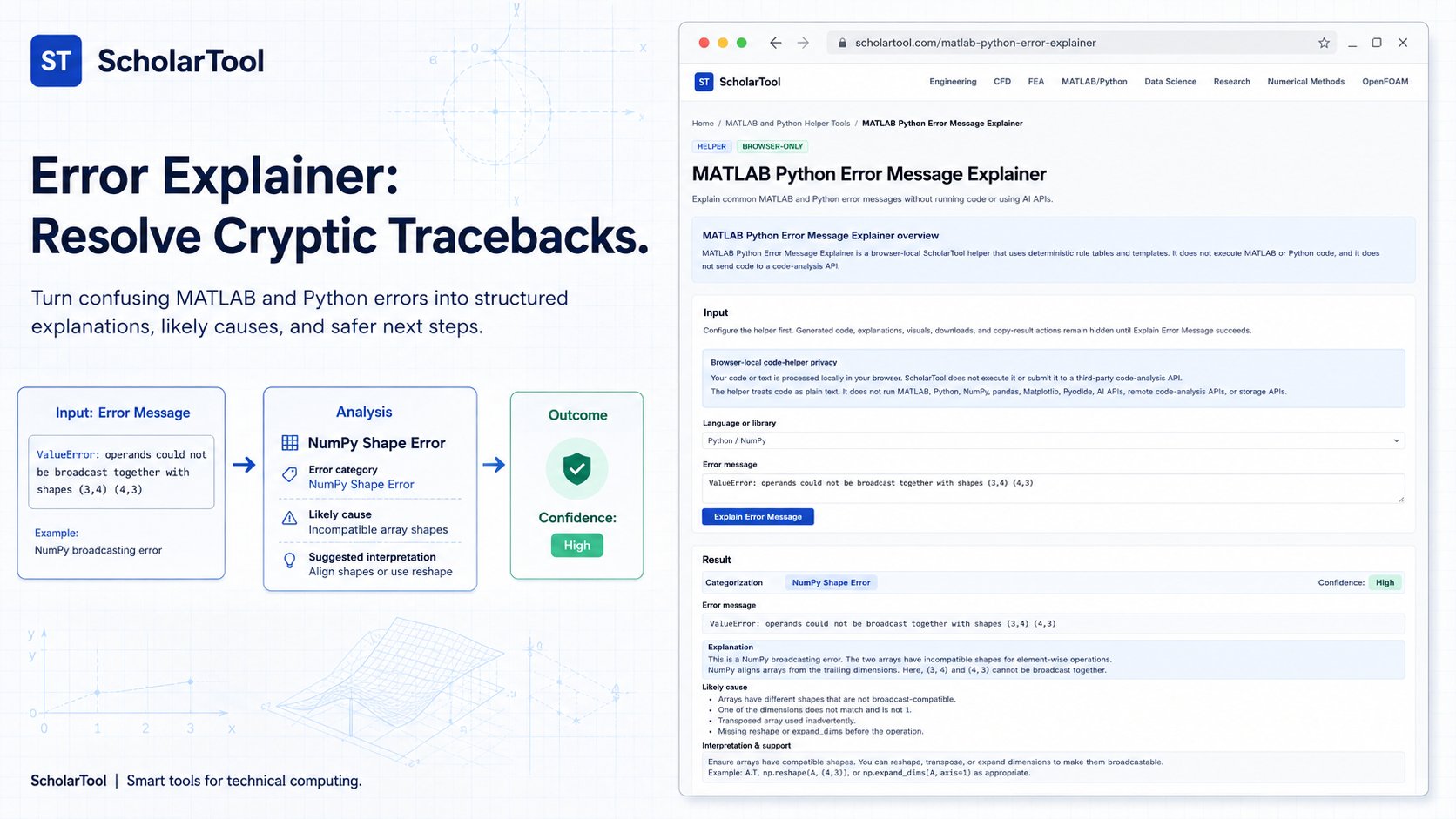
MATLAB Python Error Message Explainer: Debugging Tool
When I am auditing a complex numerical script or refining a research model, the most sudden “productivity killer” is the appearance of a cryptic traceback. As Allen Downey notes in Think Python, programming is inherently error-prone, and the process of tracking down these “bugs” is one of the most intellectually challenging parts of development. Whether it is a ValueError in a NumPy pipeline or a “Matrix dimensions must agree” alert in MATLAB, these messages often indicate where a problem was discovered, rather than where it was caused.
What I find indispensable for clearing these hurdles is the MATLAB Python Error Message Explainer from ScholarTool. It is a deterministic, browser-local utility designed to match common error families and return plain-English explanations and fix patterns. Whether I am migrating a legacy script or performing a “hand-check” on a new prototype, this tool ensures my debugging assumptions are mathematically sound while keeping my proprietary source code entirely private.
What the MATLAB Python Error Message Explainer Helps You Do
The primary purpose of this tool is to bridge the gap between abstract technical alerts and actionable solutions. In technical terms, it uses deterministic substring and regular-expression matching against known error-message families. Unlike an AI-based debugger that might guess based on a black-box model, this explainer provides a “math receipt” of rules applied to your specific traceback.
I find the interface particularly helpful because it provides a “Comparative Perspective” between environments. MATLAB, as Edward Magrab points out, is matrix-native and treats every variable as an array. Python, conversely, relies on libraries like NumPy and Matplotlib for similar parity. The Explainer handles both, identifying environment-specific nuances like the difference between MATLAB’s 2D-minimum indexing and Python’s zero-indexed 1D arrays without requiring you to run a single line of code.
Inputs You Can Use
The interface is built with a configuration-first layout that ensures your data is never submitted to a cloud API.
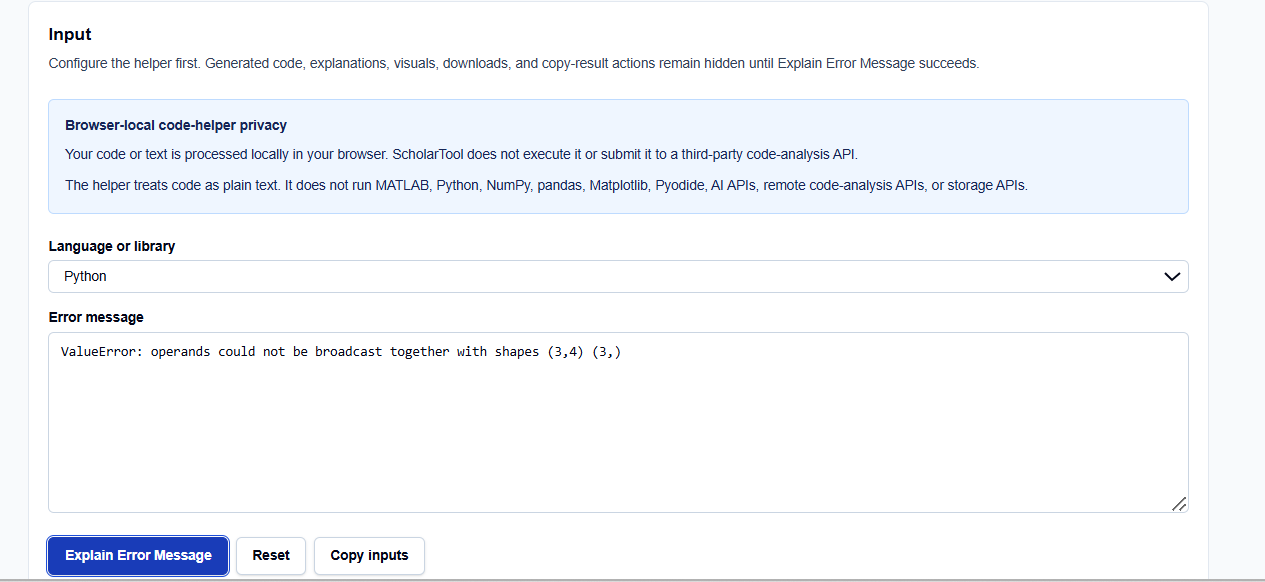
Language and Error Text
I start by selecting the Language or library relevant to the issue: Python, NumPy, pandas, Matplotlib, or MATLAB. You then paste the Error message text into the input field. What I find useful here is that the tool accepts everything from the final traceback line to larger snippets of plain-text error output.
Privacy and Residency
What I appreciate most is the “browser-only” architecture. Because the helper treats your input as plain text and processes it locally using TypeScript, your sensitive algorithms proprietary research snippets or internal logic stay in your page state and are never submitted to a third-party code-analysis API or storage service.
How I Use the Tool
My typical workflow begins when an IDE throws a message I haven’t seen in months. For instance, if I encounter a NumPy broadcast error, I select “NumPy” and paste the text: ValueError: operands could not be broadcast together with shapes (3,4) (3,).
Once I click Explain Error Message, I review the Output explanation. I appreciate that the results remain hidden until this action succeeds, which prevents me from mistaking default examples for my own session. I then review the “Likely causes” and “Confidence level” provided. Because the tool identifies the specific pattern family (e.g., NumPy broadcasting), I can quickly decide if I need to use the NumPy Array Shape Helper to resolve the underlying dimension mismatch.
Understanding the Results
The result section provides a clear Error category and a plain-English breakdown. However, for a professional audit, I pay close attention to the Checks and fix patterns:
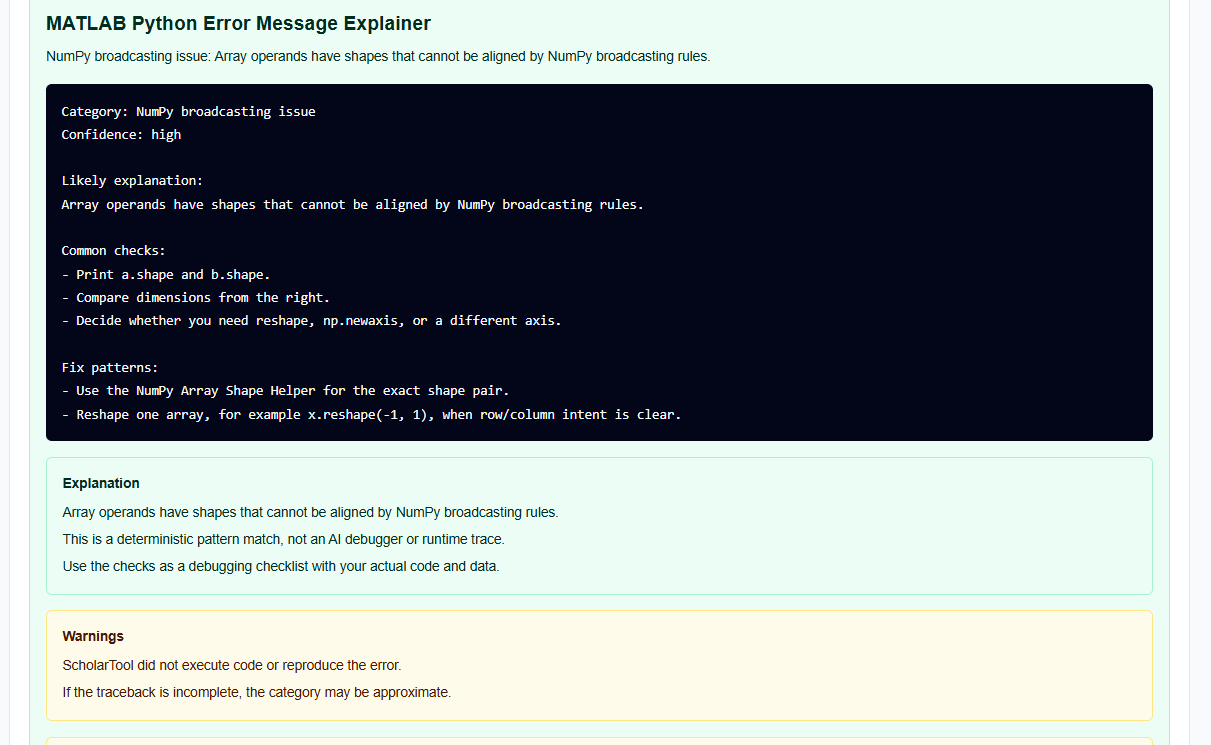
- Likely Checks: Suggested steps like “print(A.shape)” or “size(B)” to verify runtime variables.
- Fix Patterns: Common syntactic corrections, such as checking .* versus * in MATLAB.
- Related Tool Suggestions: Instant links to generators for CSV reading or matrix operations to prevent future errors.
I find the Confidence level indispensable. It identifies how closely my input matched a known deterministic rule, allowing me to judge when more human review is required.
A Practical Example
Suppose I am debugging a MATLAB script and receive the message: Matrix dimensions must agree. When I enter this into the explainer, it matches the MATLAB dimension mismatch family.
The tool returns a Final result explaining the requirement for compatible inner or outer dimensions depending on the operator. It suggests checking the size() of the involved variables and verifies if I intended to use element-wise multiplication (.*). This immediate resolution allows me to skip the manual manual lookup and focus on the technical data path.
Mistakes I Would Avoid
One common pitfall is pasting only the final traceback line. As the tool’s common mistakes section warns, useful context such as the specific function name is often found one or two lines above the final alert.
Another mistake is treating the explainer as a runtime debugger. As the code-helper disclaimer states, it generates “starter text” and checklists; it cannot inspect your local workspace variables. I always use these explanations as a drafting aid and follow up with manual verification in my target environment.
Try the Free MATLAB Python Error Message Explainer
Before you spend another hour guessing at cryptic library exceptions, take a minute to generate an explanation checklist. It is the fastest way to ground your debugging in verified deterministic rules.
Try the MATLAB Python Error Message Explainer here. To complete your troubleshooting toolkit, you may also find the NumPy Array Shape Helper, CSV Read Write Code Generator, or the MATLAB to Python Syntax Converter essential for your workflow.
FAQ
1. Does the MATLAB Python Error Message Explainer execute my code?
No. The helper treats your error text as plain text and applies deterministic local rules in your browser using TypeScript. It does not run a MATLAB or Python environment.
2. Is my code sent to a third-party AI or storage service?
No. All processing is performed locally on your device. Your tracebacks and snippets stay in the page state and are never submitted to an AI API, cloud storage, or external code-analysis service.
3. What error families are the most reliable for analysis?
Small, explicit snippets containing common NumPy shapes, MATLAB dimension alerts, pandas parser issues, or standard Python TypeError messages are the safest and most reliable for rule-based analysis.