
Force Converter: Newton, lbf, kgf & kip Tool
When I am reviewing a technical specification for a new hydraulic actuator or verifying the reaction forces in a bridge truss, I often run into the “global standards gap.” One manufacturer might provide a load rating in Kilonewtons (kN), while my legacy design software requires inputs in Pound-force (lbf) or Kips. Manually performing these conversions using a standard calculator is an invitation for a decimal-point error a mistake that, as noted in standard machine design manuals like Bhandari’s, can compromise the integrity of an entire mechanical system.
What I find indispensable for these checks is the ScholarTool Force Converter. It is a deterministic, browser-local utility designed to translate magnitudes across the SI, Metric, CGS, and US Customary systems. Whether I am defining a boundary condition for an FEA model or auditing laboratory measurements, this tool ensures that my load assumptions are accurate and my proprietary data remains private.
What the Force Converter Helps You Do
In technical terms, a Newton is the SI force required to accelerate one kilogram at one meter per second squared. The primary purpose of this converter is to provide a unified environment where diverse units ranging from Meganewtons (MN) used in heavy structural loads to Dynes (dyn) found in specialized fluid physics can be harmonized.
As I have observed in mechanics of materials, force is the fundamental driver of stress and deformation,. An error in magnitude translation can lead to a design that fails to meet its required Factor of Safety. The ScholarTool interface eliminates this risk by using a “browser-only” calculation engine. Because the math happens locally on your device, your sensitive manufacturing specs are never submitted to a third-party API a critical security requirement for professional engineering workflows.
Inputs You Can Use
The interface is built with a logical, “config-first” layout that allows you to set your parameters before you trigger a result.
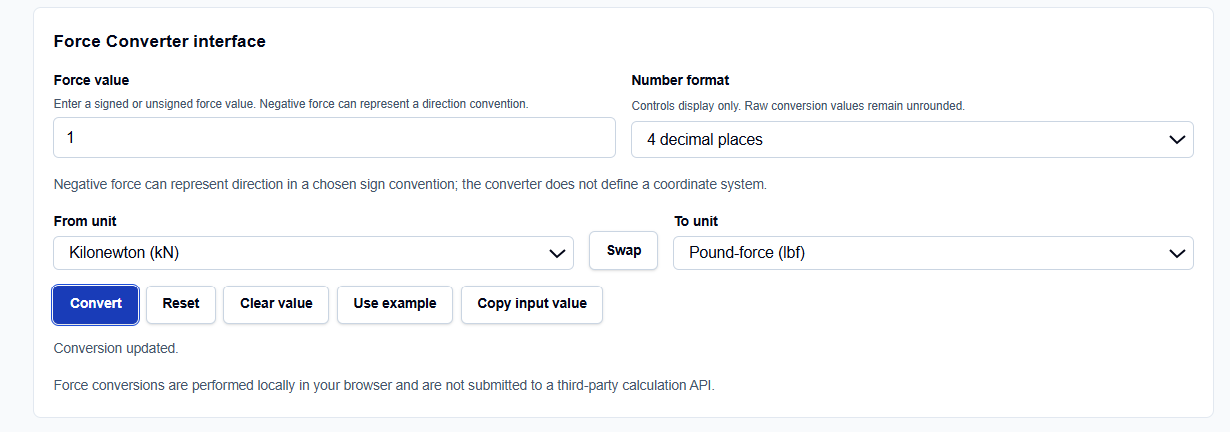
Value and Directionality
I start by entering the Force value. I have noticed that this field is highly flexible; you can enter standard integers or use scientific notation like 5.5e4. A standout feature here is the signed-force support. You can enter negative values to represent a direction convention, such as compression versus tension in a structural member,. However, it is important to remember that the tool does not define a coordinate system for you; it simply preserves the sign during magnitude translation.
Formatting and Units
Below the input, you can choose the Number format. This controls the display precision only ranging from 2 decimal places up to 6 significant figures while the tool keeps the raw conversion values unrounded internally. The From unit and To unit dropdowns cover ten standard units, including SI (N, kN), Gravitational (kgf, gf), and US Customary (lbf, kip, ozf).
How I Use the Tool
My typical workflow begins by selecting the source unit from a data sheet. For instance, if I have a structural load listed as 50 kips, I select “Kip-force (kip)” as my “From” unit. If I find I have accidentally entered them in the reverse order, I simply click the Swap button to flip the source and target.
Once I click the Convert action, I appreciate the transparency of the Calculation steps. The tool provide an explicit Base-unit normalization, converting the input into Newtons (N) first before translating to the target unit. This two-step process prevents compounding rounding errors. After the conversion, I often click the Copy primary conversion or Copy full summary buttons to archive the results directly in my project documentation.
A Comparative Perspective: Maginitude vs. Geometry
From a comparative perspective, it is useful to see how this tool relates to other setup tasks, such as those involving the Hydraulic Diameter Calculator. While the Hydraulic Diameter tool is used to resolve the geometry of a flow passage into a characteristic length scale, the Force Converter resolves the magnitude of the loads acting upon that geometry.
I find that these two tools represent the two halves of a successful simulation setup: resolving the “where” (geometry) and the “how much” (magnitude). Just as you wouldn’t guess the equivalent diameter of a rectangular duct, you shouldn’t rely on “rule-of-thumb” multipliers for your loads. Grounding your project in both geometric and numerical precision is the first step toward a converged, reliable result.
Understanding the Results
The result section provides the Primary converted value prominently at the top. However, what I find most valuable for auditing my work is the All-unit comparison table generated with every calculation.
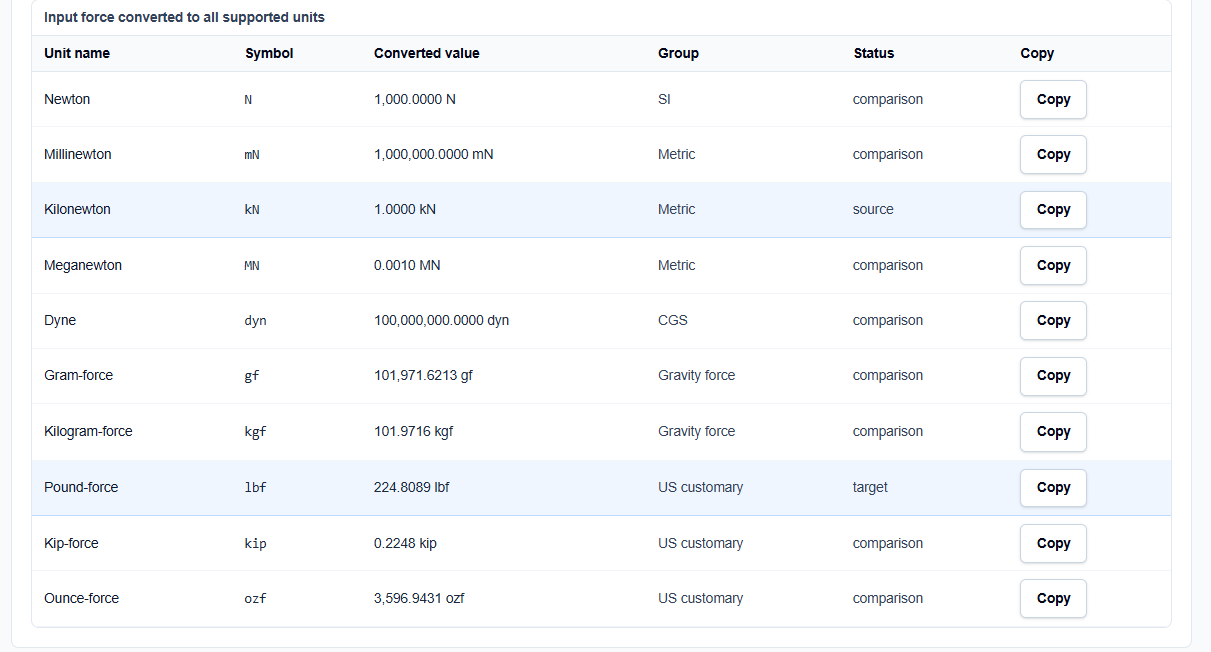
Every row in this table is converted from the same normalized Newton value, not from a rounded display result. If I am converting kN to lbf, I can glance at the table to simultaneously see the equivalent in kgf and dyn. I also find the Technical visual helpful; it shows a mass block accelerating in the direction of the force, providing a visual reminder that $F = ma$.
A Practical Example
Suppose I am verifying a load of 1 kN for a structural report. I enter 1 in the value field and select Kilonewton (kN) as the source and Pound-force (lbf) as the target.
When I click calculate, the tool normalizes the input to 1,000 N and returns approximately 224.8089 lbf,. I can then look at the comparison table and instantly see that this load is also equivalent to 0.2248 kips or 101.9716 kgf, allowing me to verify my work across multiple global standards in one step.
Mistakes I Would Avoid
One common pitfall is confusing kilogram-force (kgf) with kilogram-mass (kg). As the tool’s engineering interpretation reminds us, kgf uses standard gravity and represents weight; it must never be confused with the absolute mass of an object,.
Another mistake is dropping sign conventions when exporting loads. If your structural solver expects compression to be negative, ensure you enter the signed value into the converter. While the tool handles the math, it does not transform vector components or resolve 3D coordinate systems for you.
Try the Free Force Converter
Before you finalize your next structural audit or simulation setup, take a minute to verify your magnitudes. It is the fastest way to eliminate unit-based errors in your engineering reports.
For a complete simulation review, you may also find the Torque Converter, Stress Converter, or Pressure Converter essential for your workflow.
FAQ
1. Is kilogram-force (kgf) the same as a kilogram (kg)?
No. A kilogram is a unit of mass. A kilogram-force is the weight of one kilogram in standard gravity. The Force Converter treats kgf as a force unit, which is approximately 9.80665 Newtons.
2. Can the tool convert 3D vector components?
No. This converter handles scalar magnitudes and signed directionality. It does not perform vector addition or transform components across different 3D coordinate systems.
3. Why does the tool normalize everything to Newtons first?
By using the Newton as a common internal base unit, the tool ensures high precision and prevents the compounding rounding errors that occur when converting directly between two non-base units like kips and kilograms-force.