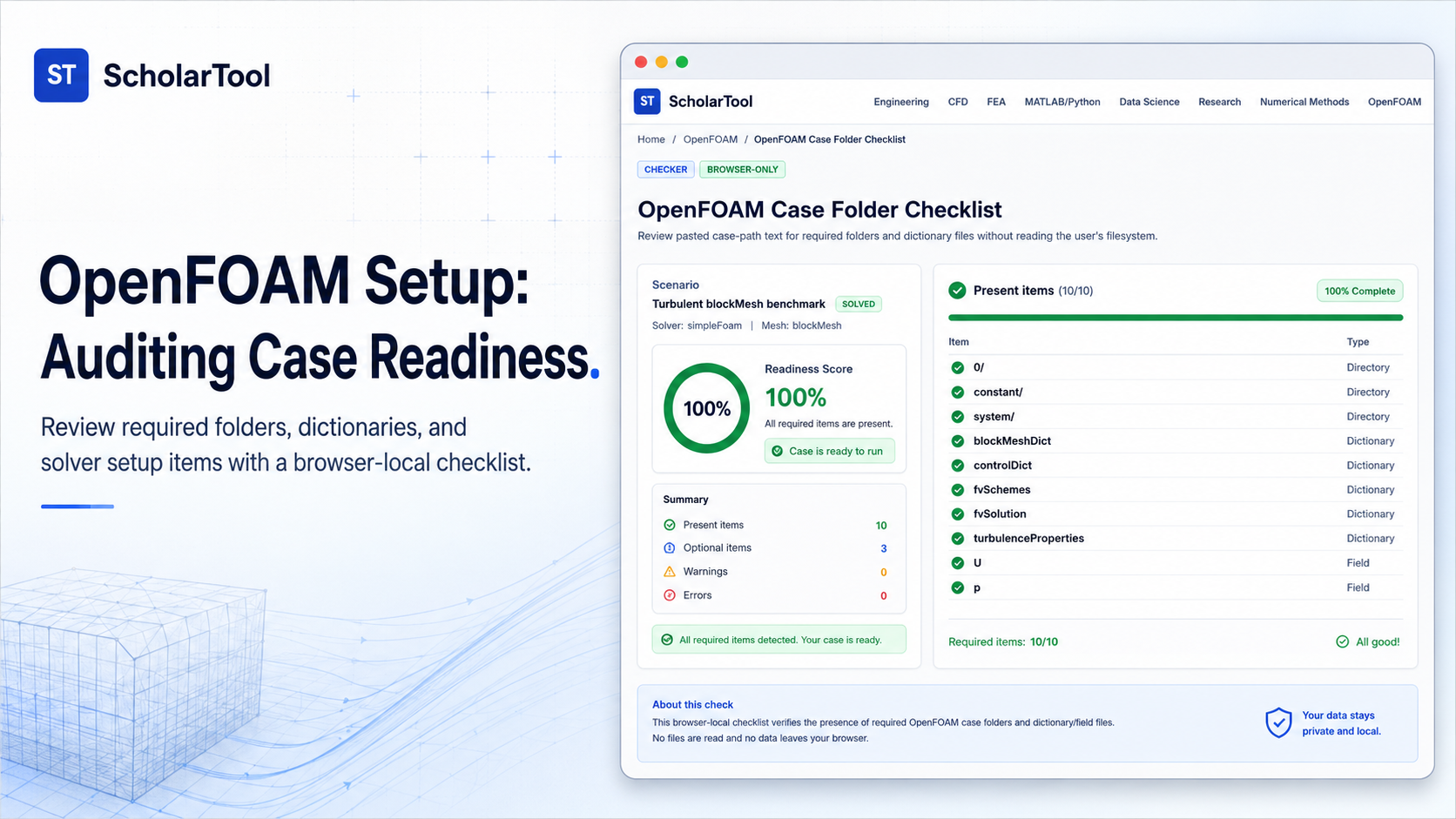
OpenFOAM Case Folder Checklist: Setup Audit Tool
When I am setting up a new CFD case whether it’s a standard tutorial like the backward-facing step or a custom research geometry the “first point of frustration” is often a simulation that refuses to start because of a missing dictionary. As noted in the OpenFOAM User Guide, a case requires a minimum set of files across the 0/, constant/, and system/ directories to execute. While I could manually scroll through my terminal to verify every file, I find that a lack of structured auditing often leads to minor setup gaps that waste precious computational time.
What I find indispensable for this pre-processing phase is the OpenFOAM Case Folder Checklist from ScholarTool. It is a deterministic, browser-local utility designed to parse your folder listing and identify if any critical components are absent before you ever click “run.” It prioritizes instructional clarity and data residency, ensuring that your proprietary case names and file paths stay on your machine while you verify your setup.
What the Case Folder Checklist Helps You Do
The primary purpose of this tool is to bridge the gap between a directory full of files and an “execution-ready” simulation state. In technical terms, it normalizes slash-separated text paths, infers base folders, and compares your listing against a required-item list for your specific case type.
I find the interface particularly helpful because it breaks the “manual search” friction. Instead of just giving you a generic list, it calculates a Readiness score a presence-only percentage that identifies how much of your setup is actually complete. What I appreciate most is the “browser-only” architecture. Because the tool processes all inputs locally using TypeScript, your internal research variables or case structures are never submitted to a third-party AI or cloud-analysis API.
Inputs You Can Use
The interface is built with a configuration-first layout to ensure the audit matches your physical modeling goals before any results are shown.
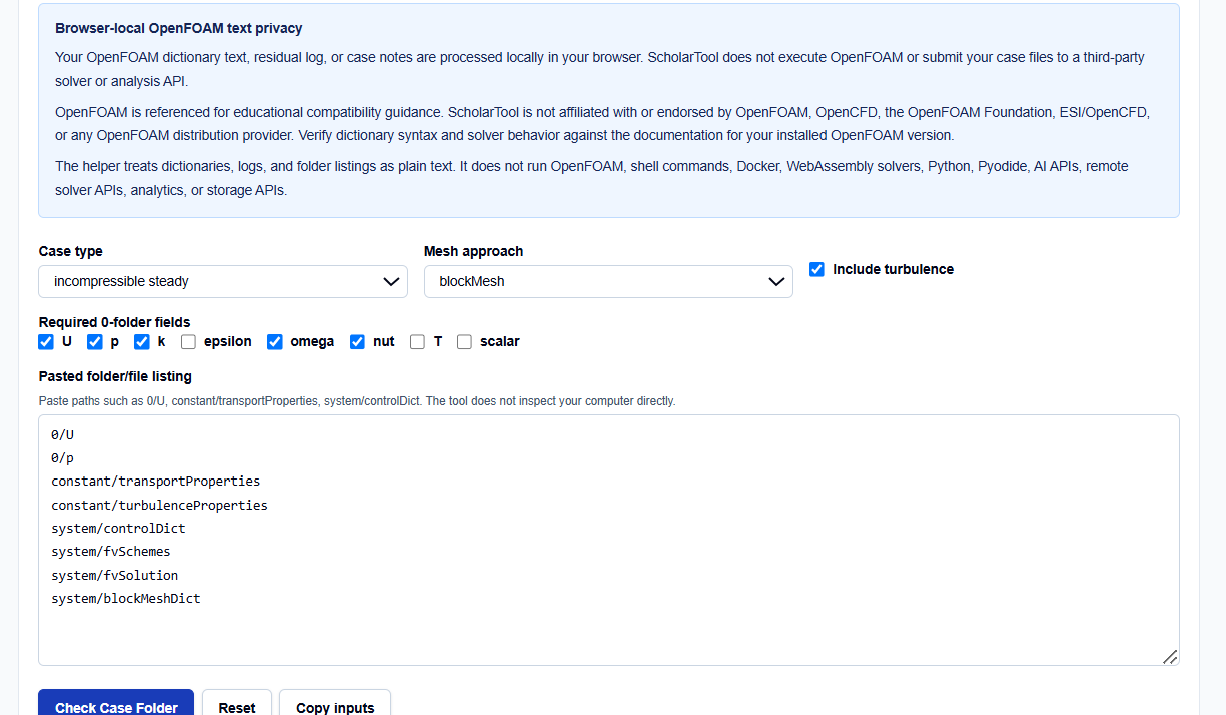
Case and Mesh Parameters
I always start by selecting the Case type you can choose from incompressible steady, incompressible transient, scalar transport, or generic. You then define your Mesh approach. If you select blockMesh, I find it useful that the tool automatically marks system/blockMeshDict as a requirement.
Field and Turbulence Toggles
You can select specific Required 0-folder fields, such as U, p, k, or T, based on your physics. One field I pay close attention to is the Include turbulence toggle. When enabled, the tool identifies that a turbulenceProperties (or momentumTransport) file is mandatory for a valid setup.
Pasted Folder Listing
The core of the tool is the Pasted folder/file listing box. You can paste relative paths like 0/U, constant/transportProperties, or system/controlDict. The tool does not inspect your computer directly; it only “sees” the text you supply.
How I Use the Tool
My typical workflow begins once I have created my starter dictionaries and field files. I run a simple recursive listing command in my terminal (like ls -R), copy the text, and open the OpenFOAM Case Folder Checklist.
Once I have configured my case type and pasted my listing, I click Check Case Folder. I appreciate that the analysis, visuals, and copy-result actions remain hidden until this explicit action succeeds, preventing me from acting on stale or default data. I then review the Missing items list. If I’ve forgotten the fvSolution file, the tool flags it immediately, allowing me to fix the gap before attempting a solver run.
Understanding the Results
The result section provides the Readiness Score first, identifying the percentage of required files present in your listing. For a professional audit, I focus on the secondary outputs:
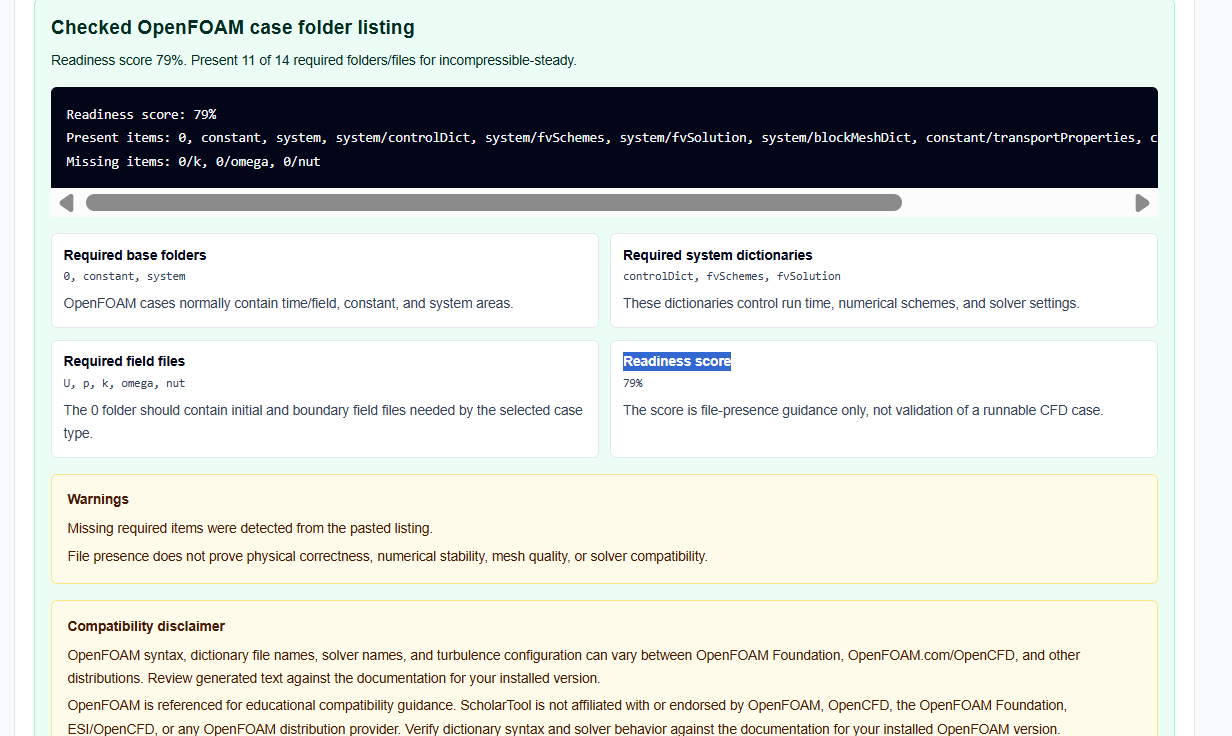
- Visual Summary: Shows a comparison of present versus missing items, making it easy to see where the setup gaps are located.
- Plain-Text Export: I frequently use the export feature to save a setup readiness signal with my case notes.
- Warnings and Next Steps: These identify if your selected fields don’t match the standard requirements for your distribution or solver family.
A Comparative Perspective: Manual vs. Automated Audits
From a professional perspective, auditing a case setup involves a trade-off between speed and depth:
- Manual Tutorial Copying: Efficient for beginners using cp -r $FOAM_TUTORIALS, but it doesn’t help you catch errors when you start moving files around for custom research.
- Terminal Grep: Powerful but requires you to remember the exact required file set for every different solver family.
- The Checklist Helper: Best for quick, private audits of setup readiness. It provides a “math receipt” for your configuration without the risk of “black-box” AI submitting your file paths to an external server.
A Practical Example: Turbulent blockMesh Benchmark
Suppose I am setting up a turbulent pipe flow using blockMesh. I select “incompressible steady,” “blockMesh,” and “Include turbulence”. I paste my listing which includes 0/U, 0/p, constant/transportProperties, and the system/ dictionaries.
As I click the action button, the tool confirms that system/blockMeshDict is present and returns a readiness score. If the score is 100%, I have a high-confidence setup readiness signal and can proceed to the OpenFOAM blockMeshDict Generator for final grading checks.
Mistakes I Would Avoid
One common pitfall is assuming a folder listing proves syntax is valid. As the tool’s common mistakes section warns, file presence does not validate the C++ dictionary syntax or the mesh quality inside.
Another mistake is listing time folders but missing the 0/ folder files. Solvers need the initial conditions in the 0/ directory to start; if you only have a 0.1/ folder from a previous crash, the checklist will help you identify that your primary initial fields are missing.
Try the Free Case Folder Checklist
Before you manually verify another case structure, take a minute to generate a transparent setup audit. It is the fastest way to ground your OpenFOAM pre-processing in structured logic while maintaining total browser privacy.
Try the OpenFOAM Case Folder Checklist here.
To complete your setup toolkit, you may also find the OpenFOAM controlDict Generator or the OpenFOAM Boundary Condition Helper essential for your simulation workflow.
FAQ
1. Does this tool run OpenFOAM or read my local disk?
No. It only analyzes the plain text of a folder listing that you paste into the browser using TypeScript logic. It does not execute shell commands, Docker, or OpenFOAM utilities.
2. Can I use the result for final engineering approval?
No. Treat it as educational setup guidance and preliminary planning. You must still verify critical cases with validated software and professional judgment.
3. Why is turbulenceProperties flagged as missing?
The checklist requires it when the “Include turbulence” toggle is active because turbulence models generally need a configuration file (like constant/turbulenceProperties or constant/momentumTransport) to execute.