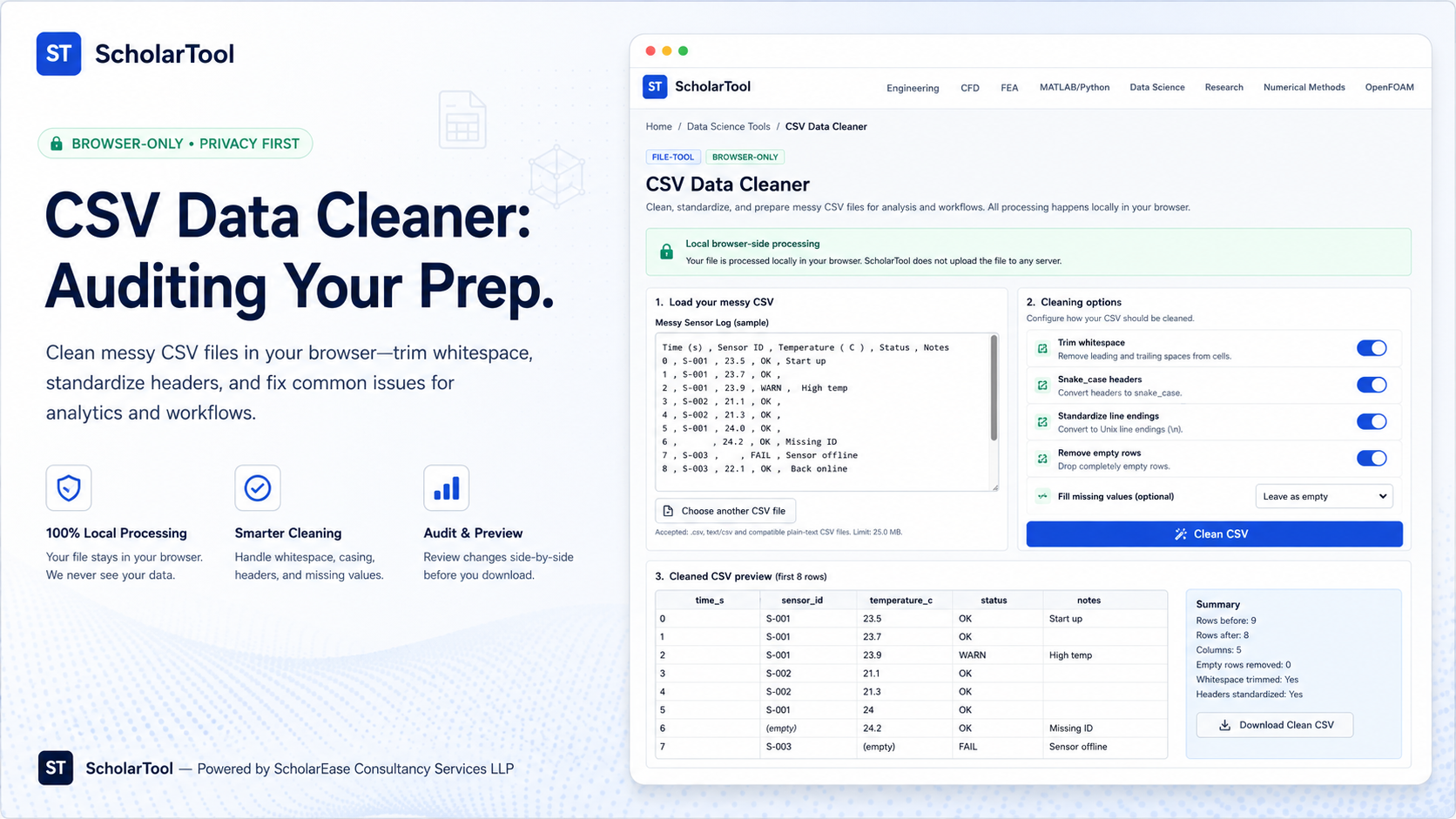
CSV Data Cleaner: Online Whitespace & Row Removal Tool
When I start a new data science project whether I am analyzing user logs from a web server or processing a repository of agricultural sensor data the “first point of friction” is rarely the complexity of the model. Instead, it is the quality of the raw data. As noted in An Introduction to Data Science, the usefulness of your results depends heavily on how much attention you pay to preprocessing: data cleaning and data screening. I find that a single invisible trailing space in a category name or a block of empty rows at the bottom of a file can stall a Python script or bias a statistical mean before the analysis even begins.
What I find indispensable for this auditing phase is the CSV Data Cleaner from ScholarTool. It is a deterministic, browser-local utility designed to give you a “math receipt” of your dataset’s hygiene. It prioritizes instructional clarity and data residency, ensuring that your proprietary research values and sensitive column names never leave your machine while you prepare them for your learner.
What the CSV Data Cleaner Helps You Do
The primary purpose of this tool is to help you move from a messy, raw export to a “fit for purpose” dataset. In technical terms, it performs a rule-based inspection of your CSV to standardize text fields and remove structural redundancies.
What I find useful here is the focus on “data sovereignty.” Unlike standard AI-based parsers that might send your files to a cloud-analysis API for “cleaning,” this tool works entirely on the client side using the Papa Parse library. This means your case-specific data points even those involving confidential research never leave your browser tab. It addresses the common “garbage in, garbage out” problem by automating the most tedious aspects of preparation: trimming whitespace, formatting headers, and purging empty segments.
Inputs You Can Use
The interface is built with a configuration-first layout to ensure your data is read correctly before you ever commit to a cleaning strategy.
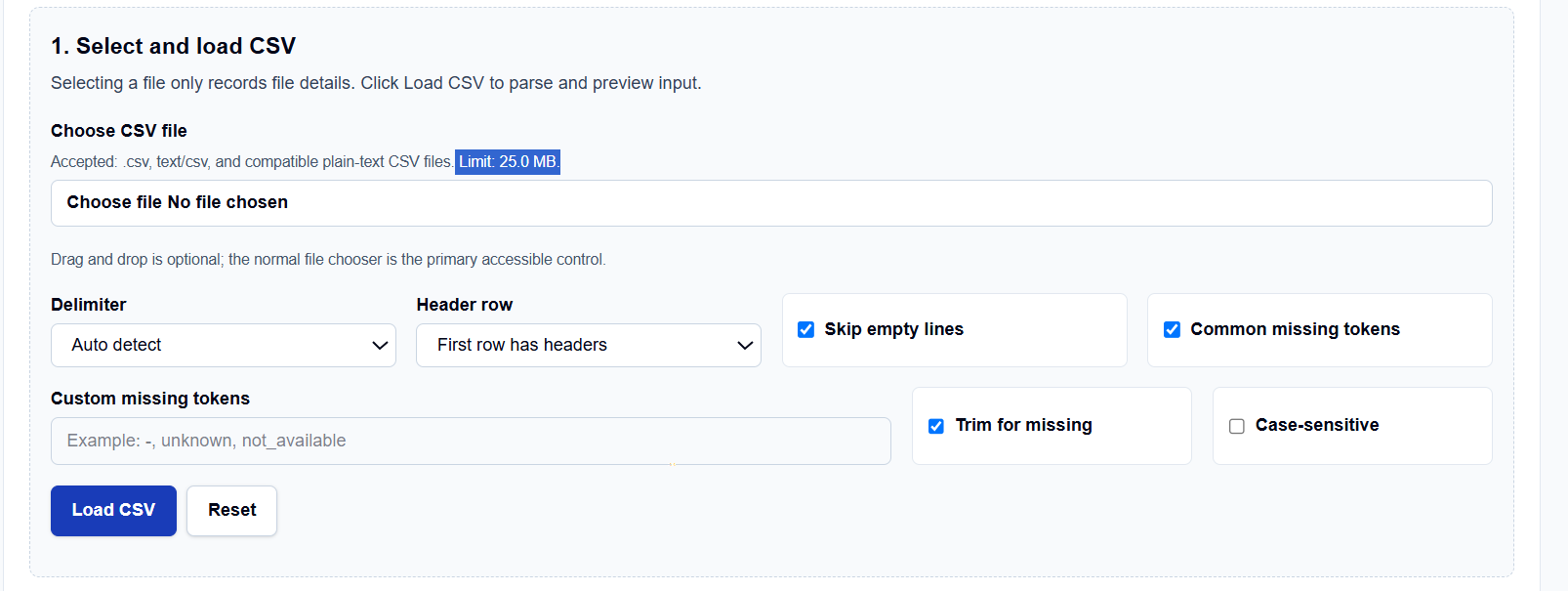
Loading and Delimiters
You begin by selecting your CSV file (up to 25.0 MB). I like that it doesn’t just assume a comma delimiter; you can choose Semicolon, Tab, or Pipe, or let the tool Auto detect the format. If your file has notes or blank lines at the start, you can toggle the Header row status to ensure the tool correctly identifies your variables.
Custom Token and Missing Data Logic
A professional feature I frequently use is the Custom missing tokens field. As we know from data science textbooks, missing data isn’t always labeled as “NA”; it might be coded as “999” or “null” depending on the source. The tool allows you to define these tokens, toggle Case-sensitive matching, and even Trim for missing values to ensure your “empty” cells are recognized even if they contain a space.
How I Use the Tool
My typical workflow begins after I have downloaded a raw dataset from a repository like UCI. I open the CSV Data Cleaner.
Once I have loaded the file, I review the configuration options in the second step. I find it practical that the results and visuals remain hidden until I click Clean CSV, preventing me from acting on stale data. If I am preparing a dataset for a Python-based machine learning model, I always enable the snake_case headers option. This converts messy, space-filled column names like “First Name” into “first_name,” which is much more model-friendly and follows standard Python variable naming conventions.
Understanding the Results
The result section provides a preview of the Cleaned Data first, identifying the rows and columns that remain after your rules are applied. For a professional audit, I focus on:
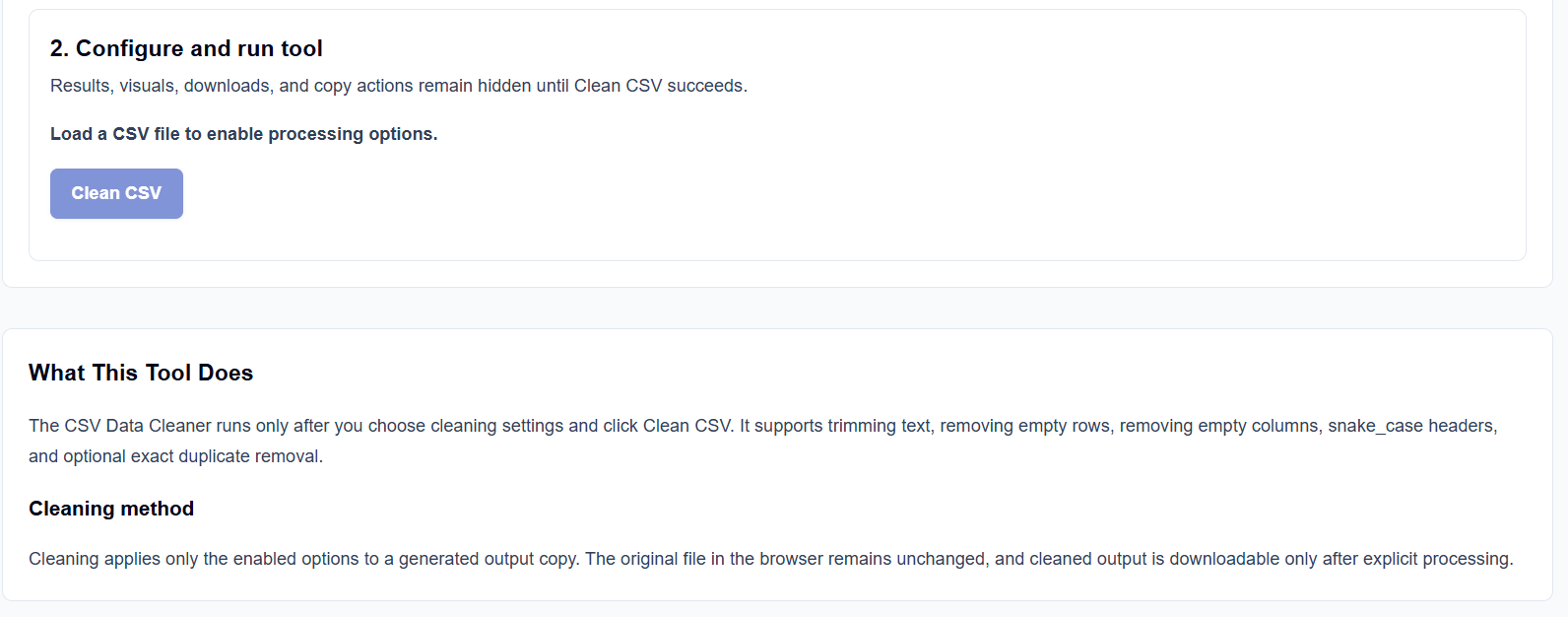
- Whitespace Trimming: This ensures that ” Male” and “Male” are treated as the same category, preventing “type” errors in downstream scripts.
- Structural Purging: The tool removes empty rows and columns that often appear as “noise” in exports from legacy database systems.
- Downloadable Result: I frequently use the export feature to save a local copy of the cleaned CSV. Because this is a generated output, your original source file remains unchanged on your hard drive.
A Practical Example: The Messy Sensor Log
Suppose I load a sensor export that contains leading spaces in the reading values and several blank columns used as “placeholders.” After clicking the action button, I select Trim text and Remove empty columns. The tool strips the invisible characters and collapses the empty columns. This “math receipt” allows me to proceed to the Missing Value Analyzer with a verified, rectangular baseline.
Mistakes I Would Avoid
One common pitfall is cleaning headers without checking downstream code. If you have a Python script that expects a column named “AGE (years)” and you convert it to “age_years” using snake_case, your script will crash. I always verify my variable references before performing a header scrub.
Another mistake is removing duplicate rows before checking for versioning. As the tool’s guidance reminds us, sometimes a “duplicate” row actually contains newer, corrected data that you might want to keep over the original.
Try the Free CSV Data Cleaner
Before you spend another hour manually unrolling row-deletion loops in a spreadsheet, take a minute to generate a transparent data audit. It is the fastest way to ground your preprocessing in structured logic while maintaining total browser privacy.
Try the CSV Data Cleaner here. To complete your preprocessing toolkit, you may also find the Duplicate Row Finder or the CSV to JSON Converter essential for your simulation and research workflows.
FAQ
1. Does the cleaner modify my original file?
No. The tool processes a copy of your data within the browser tab. The downloaded CSV contains the cleaned results, but your original source file on your local disk remains completely unchanged.
2. What exactly is snake_case?
snake_case is a formatting style that converts text to lowercase and replaces spaces with underscores (e.g., user_id). This makes column names more compatible with variable naming rules in languages like Python.
3. Are my proprietary datasets uploaded to ScholarTool?
No. All processing happens locally in your browser using JavaScript and the File API. ScholarTool does not upload your files to any third-party calculation or storage API.