OpenFOAM blockMeshDict Generator: Online Meshing Tool
When I am setting up a new CFD case whether it is a simple laminar pipe flow tutorial or the initial “base mesh” for a complex external aerodynamics study the “first hurdle” of simulation is always geometry discretization. In OpenFOAM, this typically begins with the system/blockMeshDict file. While the utility is incredibly powerful, manually mapping eight vertices in a right-handed Cartesian system and ensuring patch face connectivity is a notorious source of early-run syntax errors.
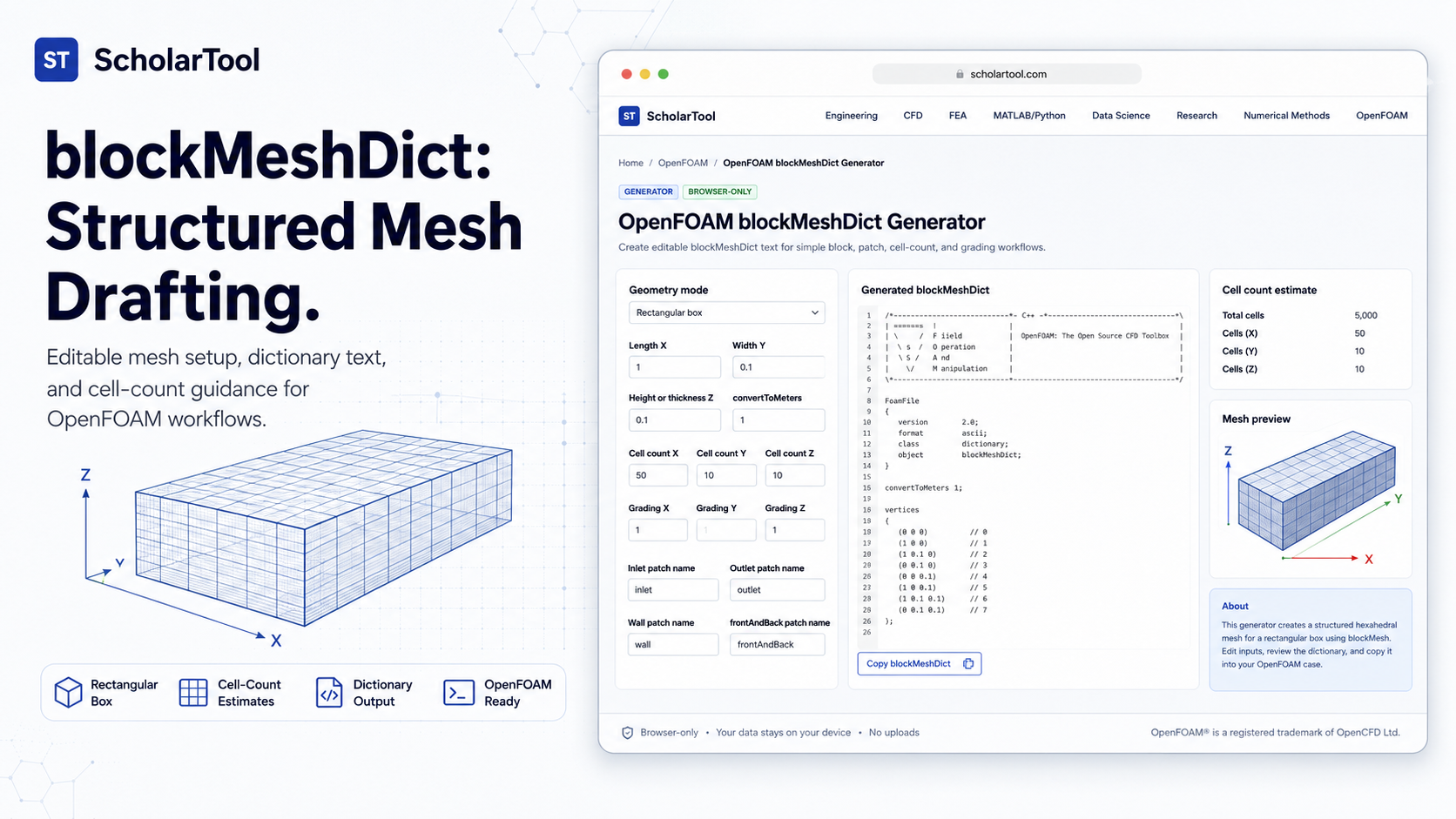
What I find indispensable for this drafting phase is the OpenFOAM blockMeshDict Generator from ScholarTool. It is a deterministic, browser-local utility designed to build a conservative starter template for simple orthogonal blocks, patches, and cell grading. It prioritizes instructional clarity and data residency, ensuring that my case dimensions and cell counts stay on my device while I plan my simulation domain.
What the blockMeshDict Generator Helps You Do
The primary purpose of this tool is to bridge the gap between your conceptual dimensions and an actionable C++ dictionary. In technical terms, it validates your dimensions, cell counts, and grading factors, then formats them into the precise vertex lists and block definitions required by the blockMesh utility.
I find the interface particularly helpful because it identifies the three most common “starter” patterns: the Rectangular box, the 2D channel (which requires a specific one-cell thickness), and the Simple duct. Instead of staring at a blank text file, you can select your geometry mode and receive a structural draft instantly. What I appreciate most is the “browser-only” architecture. Because the tool processes all inputs locally using TypeScript, your proprietary research parameters or case structures are never submitted to a third-party AI or remote analysis API.
Inputs You Can Use
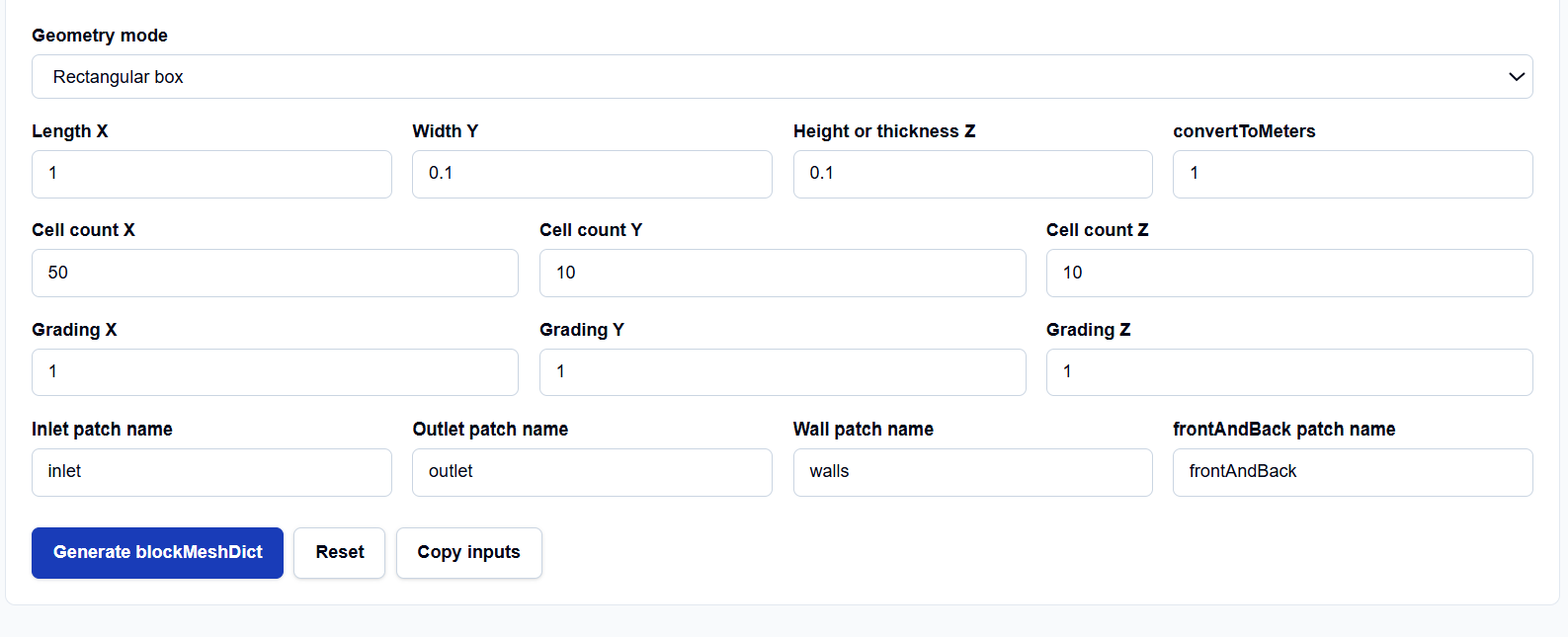
The interface is built with a logic-first layout that ensures you have a valid setup before the dictionary is generated.
Geometry and Dimensions
You start by selecting your Geometry mode. One field I pay close attention to is convertToMeters. As noted in the OpenFOAM User Guide, while you can enter dimensions in any unit, OpenFOAM writes the final mesh in SI meters; this input allows you to scale your input values accordingly. For a standard SI setup, I leave this at 1.0.
Cell Counts and Grading
You define the Cell count ($nx, ny, nz$) in each direction. If you select the 2D channel mode, I find it useful that the tool automatically forces the $Z$ cell count to one, ensuring compatibility with OpenFOAM’s 2D solving requirements. You can also specify Grading factors ($gx, gy, gz$) to control cell expansion, which is essential for capturing wall-bounded gradients without wasting cells in the far field.
Patch Naming
You can customize the names for your Inlet, Outlet, Wall, and frontAndBack patches. I find this helpful for maintaining consistency with my 0/ folder field files from the very beginning of the setup.
How I Use the Tool
My typical workflow begins when I have a conceptual domain size and a target mesh density for a preliminary design estimate. I open the OpenFOAM blockMeshDict Generator and select my geometry mode.
Once I have entered my dimensions and cell counts, I click Generate blockMeshDict. I appreciate that the results, visuals, and copy-result actions remain hidden until this explicit action succeeds, preventing me from acting on stale data. I then review the Visual summary, which identifies the estimated cell count and aspect ratios. If the aspect ratio looks too high (e.g., above 10:1 in the core flow), I adjust my cell counts right there in the browser before copying the text into my system/ folder.
A Comparative Perspective: blockMesh vs. snappyHexMesh
From a professional perspective, blockMesh and snappyHexMesh serve different roles in the meshing ecosystem:
- blockMesh: Best for simple, structured, orthogonal geometries and as the “background mesh” for more complex workflows. It provides the cleanest cell quality but lacks flexibility for complex shapes.
- snappyHexMesh: Used for complex geometries from STL/OBJ files. It iteratively refines a starting mesh, which usually comes from a dictionary generated by a tool like this one.
- Structured vs. Unstructured: For simple boxes and ducts, the structured grid generated by blockMesh is easier to solve and more computationally efficient than unstructured alternatives.
Understanding the Results
The result section provides the Editable blockMeshDict text first, targeted directly for your system/blockMeshDict file. For a professional audit, I focus on the secondary outputs:
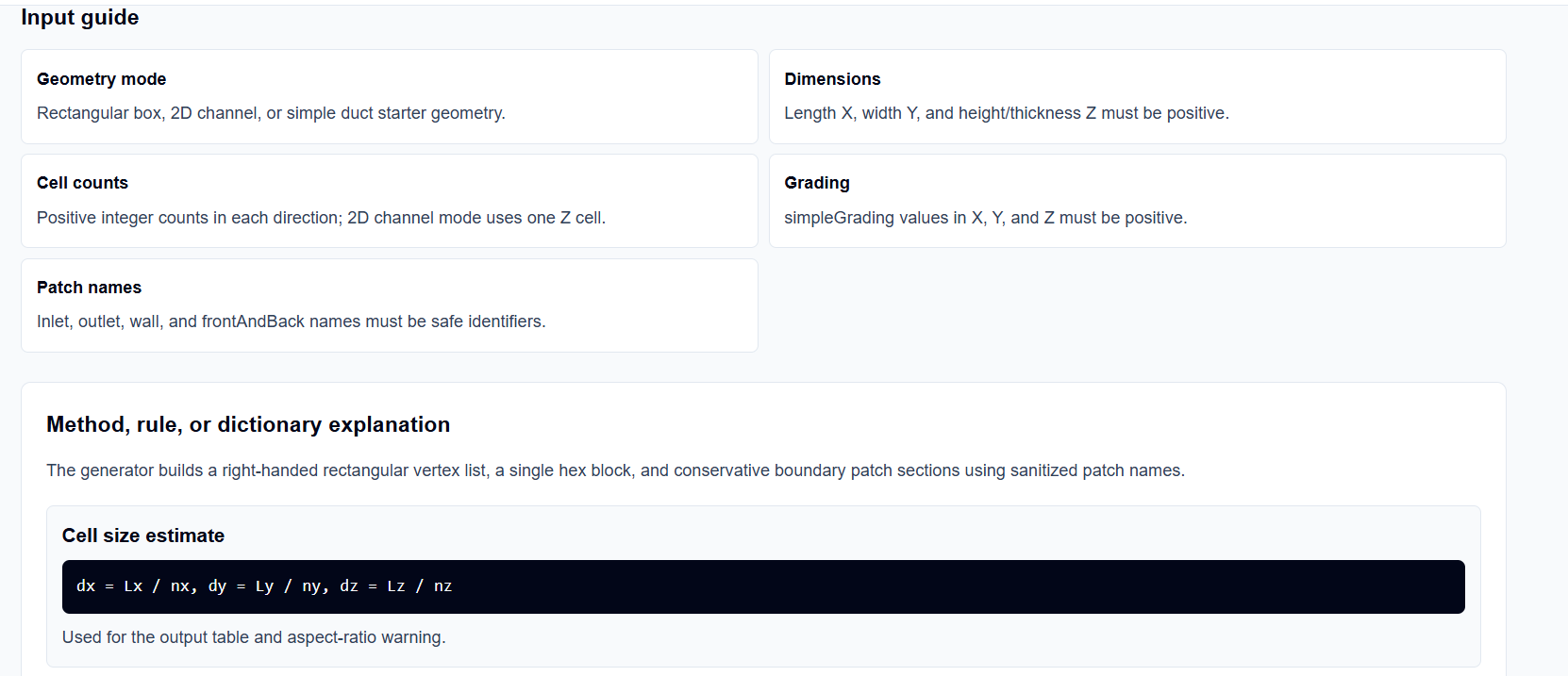
- Vertex Table: Lists the generated vertex numbering, which is vital if I need to add manual “edges” or “blocks” later.
- Cell Size Estimate: Reports the nominal $\Delta x, \Delta y, \Delta z$ values, which I use as inputs for the OpenFOAM Courant Number and Time Step Calculator.
- Warnings: These identify potential setup errors, such as dimension scales or cell-count imbalances.
A Practical Example: The Rectangular Box Benchmark
Suppose I need to create a mesh for a 1.0m long box with a 0.1m x 0.1m cross-section. I enter $Lx=1, Ly=0.1, Lz=0.1$ and set cell counts to $nx=50, ny=10, nz=10$.
When I click Generate blockMeshDict, the tool creates 8 vertices and one hex block with 5,000 total cells. The visual summary confirms a cell size of $dx=0.02$. This immediate resolution allows me to verify the “right-handedness” of the block before I ever open a terminal to run the blockMesh command.
Mistakes I Would Avoid
One common pitfall is using empty patches with more than one cell through the thickness. If you are solving in 2D, you must ensure the $Z$ direction has exactly one cell and the front/back patches are type empty.
Another mistake is ignoring convertToMeters. If your CAD dimensions are in millimeters but you leave convertToMeters at 1.0, your simulation will treat the domain as if it were 1,000 times larger than intended.
Try the Free OpenFOAM blockMeshDict Generator
Before you manually map another set of vertices in your case files, take a minute to generate a transparent structured mesh draft. It is the fastest way to ground your OpenFOAM setup in verified dictionary logic while maintaining total browser privacy.
Try the OpenFOAM blockMeshDict Generator here.
To complete your setup toolkit, you may also find the OpenFOAM Boundary Condition Helper or the OpenFOAM Case Folder Checklist essential for your simulation workflow.
FAQ
1. Does this tool run blockMesh in my browser?
No. It only generates the blockMeshDict text locally in your browser. You must still run the blockMesh utility from your local OpenFOAM installation to create the mesh files.
2. Can I generate curved edges with this helper?
No. This generator is intentionally limited to simple orthogonal one-block starters for education and preliminary planning. Complex geometries with curved edges require manual editing of the edges section or using snappyHexMesh.
3. Are my case dimensions or patch names sent to ScholarTool?
No. All dictionary text and dimension inputs are processed locally on your device using TypeScript logic. ScholarTool does not submit your case notes to any third-party solver or analysis API.