CSV Read Write Code Generator: MATLAB & Python Tool
When I am starting a new data analysis project or auditing an existing research pipeline, the first “stumbling block” is almost always the data ingestion. As Hans-Petter Halvorsen notes in Python for Science and Engineering, Python depends on external packages like pandas or NumPy to reach scientific parity, requiring explicit imports and specific function calls. MATLAB, conversely, is a matrix-native environment that uses built-in functional commands like readtable or readmatrix. Moving between these two worlds often results in a flurry of manual lookups for delimiter flags, encoding arguments, and header settings.
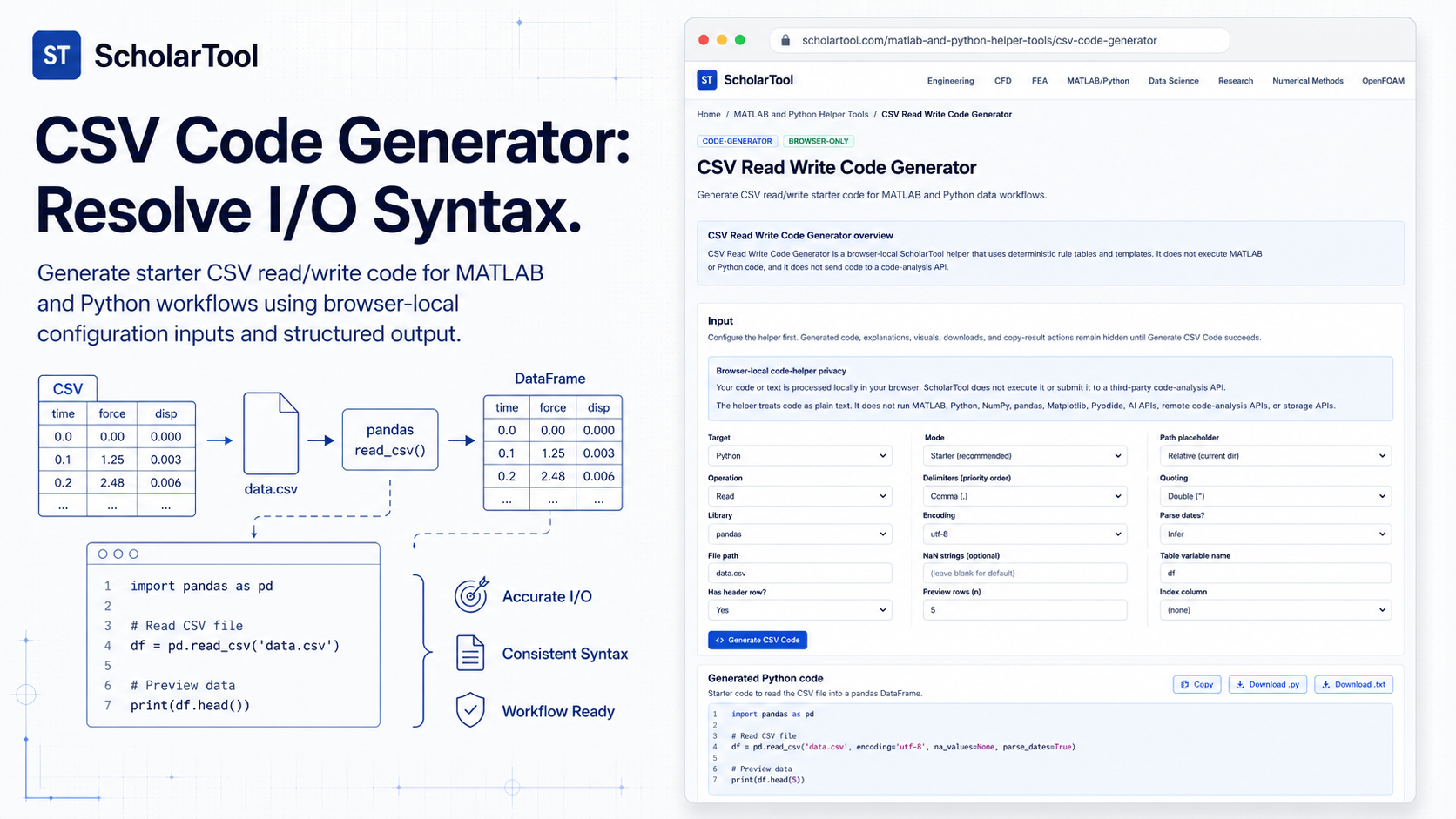
What I find indispensable for clearing this hurdle is the CSV Read Write Code Generator from ScholarTool. It is a deterministic, browser-local utility designed to generate boilerplate snippets for five major I/O targets. Whether I am drafting a quick pandas import for a teaching lab or building a migration checklist for a legacy MATLAB project, this tool ensures my syntax assumptions are mathematically sound while keeping my proprietary file paths and variable names entirely private.
What the CSV Read Write Code Generator Helps You Do
The primary purpose of this tool is to speed up routine syntax translation and template drafting for data workflows. In technical terms, it selects a static I/O template based on your selected “Target” and “Mode” and fills in your validated configuration details. Unlike AI-based generators that might guess your intent, this helper provides a “math receipt” of rules applied to your specific CSV parameters.
I find the interface particularly helpful because it handles the “boilerplate” that engineers often forget, such as the import statements in Python or the ‘v’ vector-output flag in MATLAB data extraction. What I appreciate most is the “browser-only” architecture. Because the helper treats your input as plain text and processes it locally using TypeScript, your sensitive internal labels or research structures are never submitted to a third-party code-analysis API or storage service.
A Comparative Perspective: Choosing the Right Tool for the Job
From a comparative perspective, the tool highlights the fundamental differences in how these environments handle structured data.
- MATLAB table vs. matrix: As Edward Magrab emphasizes, readtable is the standard for mixed text and numeric data, whereas readmatrix (and the legacy load command) are intended for pure numerical arrays. The generator lets you toggle between these to see how the syntax shifts.
- Python pandas vs. NumPy: pandas is the heavy-hitter for data science, offering read_csv for complex dataframes. However, if you are working with pure numeric data for high-performance computing, the tool also provides templates for numpy.loadtxt, which is often faster and lighter on memory.
Seeing these options side-by-side allows me to maintain consistency across my research prototypes and ensures that I am following the idiomatic standards of each environment.
Inputs You Can Use
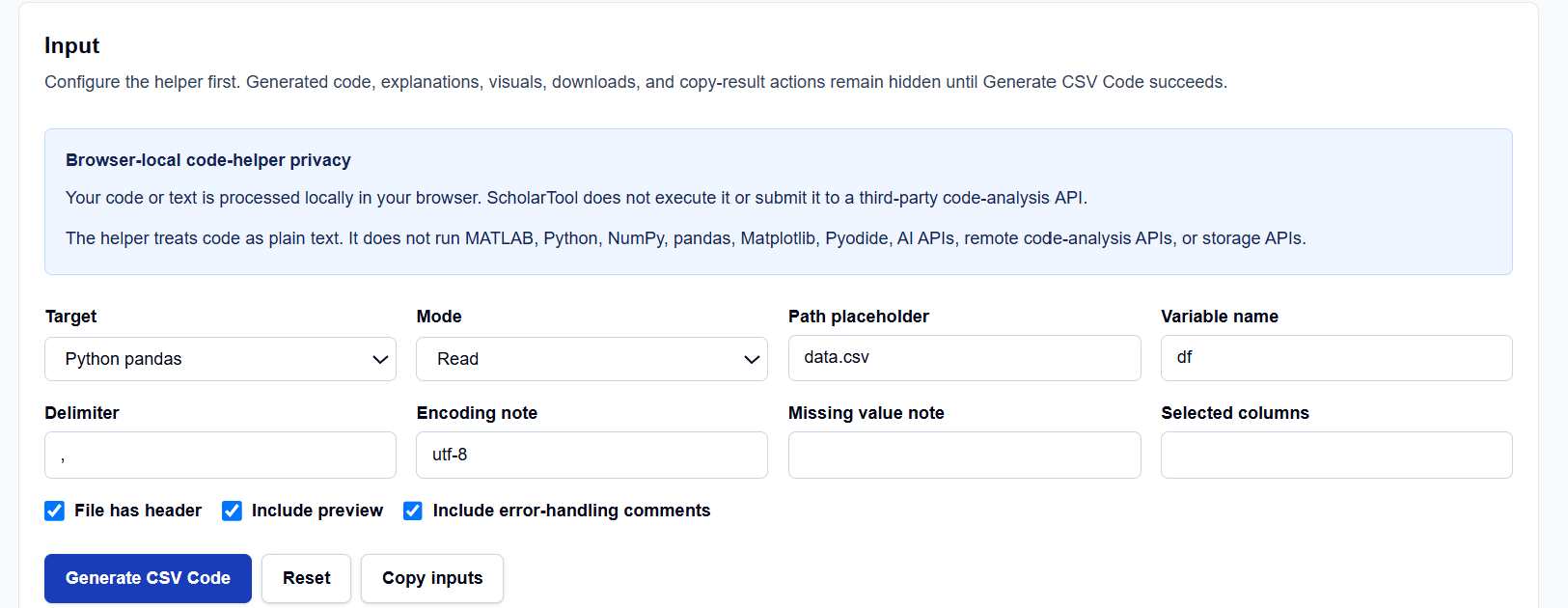
The interface is built with a configuration-first layout that allows you to define your file characteristics before viewing the result code.
Target and Mode
I start by selecting the Target library (e.g., Python pandas, MATLAB table, etc.) and the Mode (Read or Write).
File and Variable Configuration
You then enter your Path placeholder (e.g., data.csv) and Variable name (e.g., df or T). I find the advanced options particularly useful; you can specify a custom Delimiter, provide an Encoding note (like utf-8), and include a Missing value note to document how your script handles NaNs or empty cells.
Conditional Features
What I find professionally valuable are the checkboxes:
- Include preview: Generates additional lines (like df.head() or T(1:5,:)) to verify the import immediately.
- Include error-handling comments: Adds boilerplate notes for checking if the file path is accessible.
How I Use the Tool
My typical workflow begins when I need to migrate a data import idea from a Jupyter Notebook to a MATLAB .m script. For instance, if I have a complex CSV in Python, I open the helper and select “MATLAB table” with “Read” mode.
Once I enter my delimiter and header preferences, I click Generate CSV Code. I appreciate that the results remain hidden until this action succeeds, ensuring I don’t mistake stale examples for my own session output. I then review the Output explanation and any Warnings provided. Because the tool is deterministic, I can audit the generated code as a “math receipt” of the I/O logic. After the check, I use the Copy result button to paste the starter text into my IDE.
Understanding the Results
The result section provides the Generated CSV read or write code prominently at the top. However, for a professional audit, I pay close attention to the Warnings:
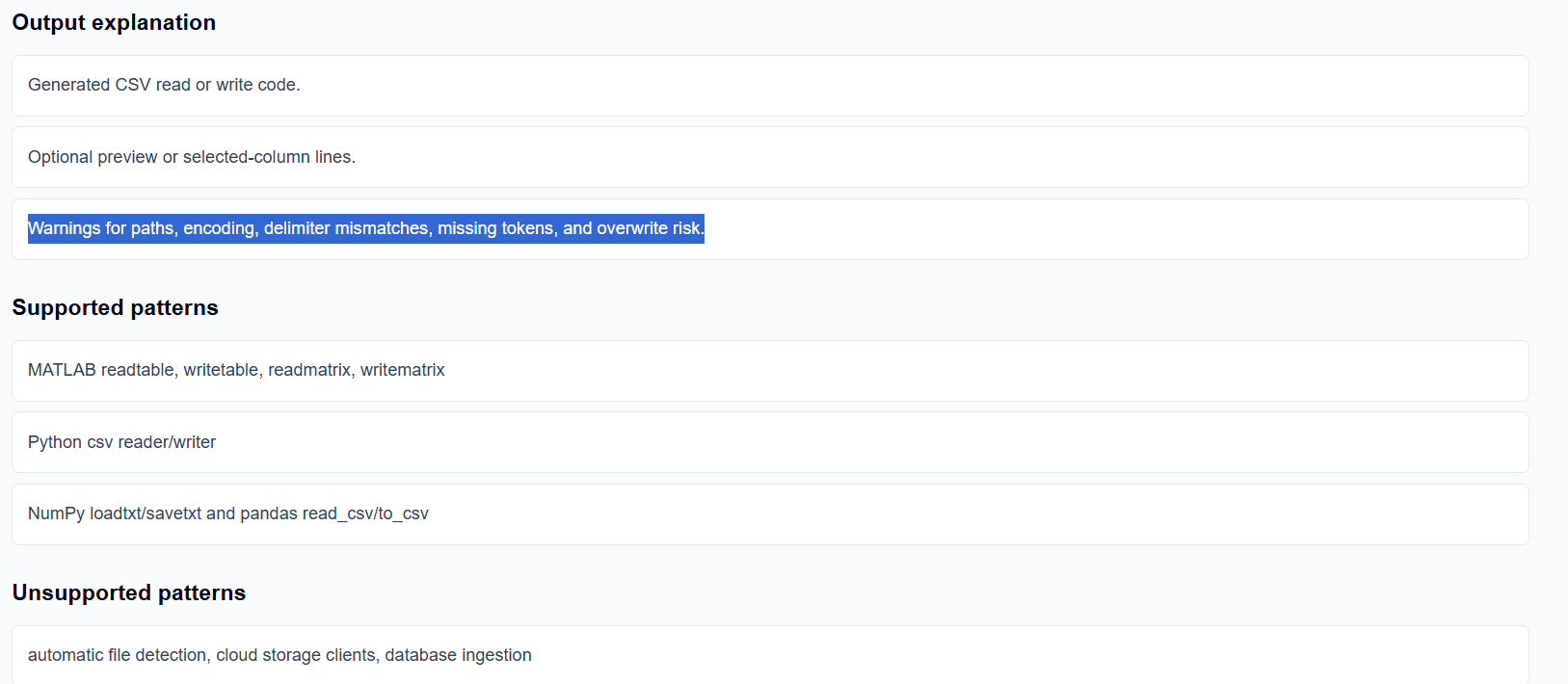
- Overwrite Risk: The tool warns you that “Write” mode scripts will typically overwrite existing files without confirmation.
- Semantic Equivalence: The helper identifies cases where rule-based transformation cannot prove semantic equivalence, such as in complex encoding mismatches.
- Path Placeholders: It provides a vital reminder to keep file paths as placeholders until you know the deployment directory on your local machine.
A Practical Example
Suppose I am creating a pandas read script for a file named sensor_data.csv. I select “Python pandas,” “Read” mode, and enter df as the variable name. I check “Include preview.”
The CSV Read Write Code Generator returns a Final result that includes import pandas as pd, df = pd.read_csv(“sensor_data.csv”), and print(df.head()). This immediate resolution allows me to skip the routine syntax lookup and focus on verifying the engineering data quality.
Mistakes I Would Avoid
One common pitfall is using readmatrix for mixed data. As the tool’s common mistakes section warns, using MATLAB’s matrix target for files containing text headers will often lead to errors or truncated data.
Another mistake is forgetting index=False during pandas exports. If your row indexes are not part of your actual data, omitting this flag will add an unnecessary column to your CSV every time you save, a major headache for version control.
Try the Free CSV Read Write Code Generator
Before you spend another hour manually typing out delimiter and encoding flags for your data pipeline, take a minute to generate an I/O template. It is the fastest way to ground your data ingestion in verified syntax rules while maintaining total data residency.
Try the CSV Read Write Code Generator here.
To complete your data science toolkit, you may also find the MATLAB Python Plot Code Helper, NumPy Array Shape Helper, or the Code Comment and Docstring Generator essential for your workflow.
FAQ
1. Does the CSV Read Write Code Generator open my data files?
No. The helper treats your path placeholders and variable names as plain text and applies deterministic local templates in your browser. It does not run a Python interpreter, pandas runtime, or a MATLAB environment, and it cannot access your local file system.
2. Is my proprietary path or variable information sent to an AI service?
No. All processing is performed locally on your device using TypeScript. Your inputs and generated snippets stay in the page state and are never submitted to an AI API, cloud storage, or third-party code-analysis service.
3. What CSV patterns are the safest for this tool?
Small, explicit snippets containing common arrays, matrices, standard library calls, and clear variable names are the safest and most reliable for rule-based template generation.