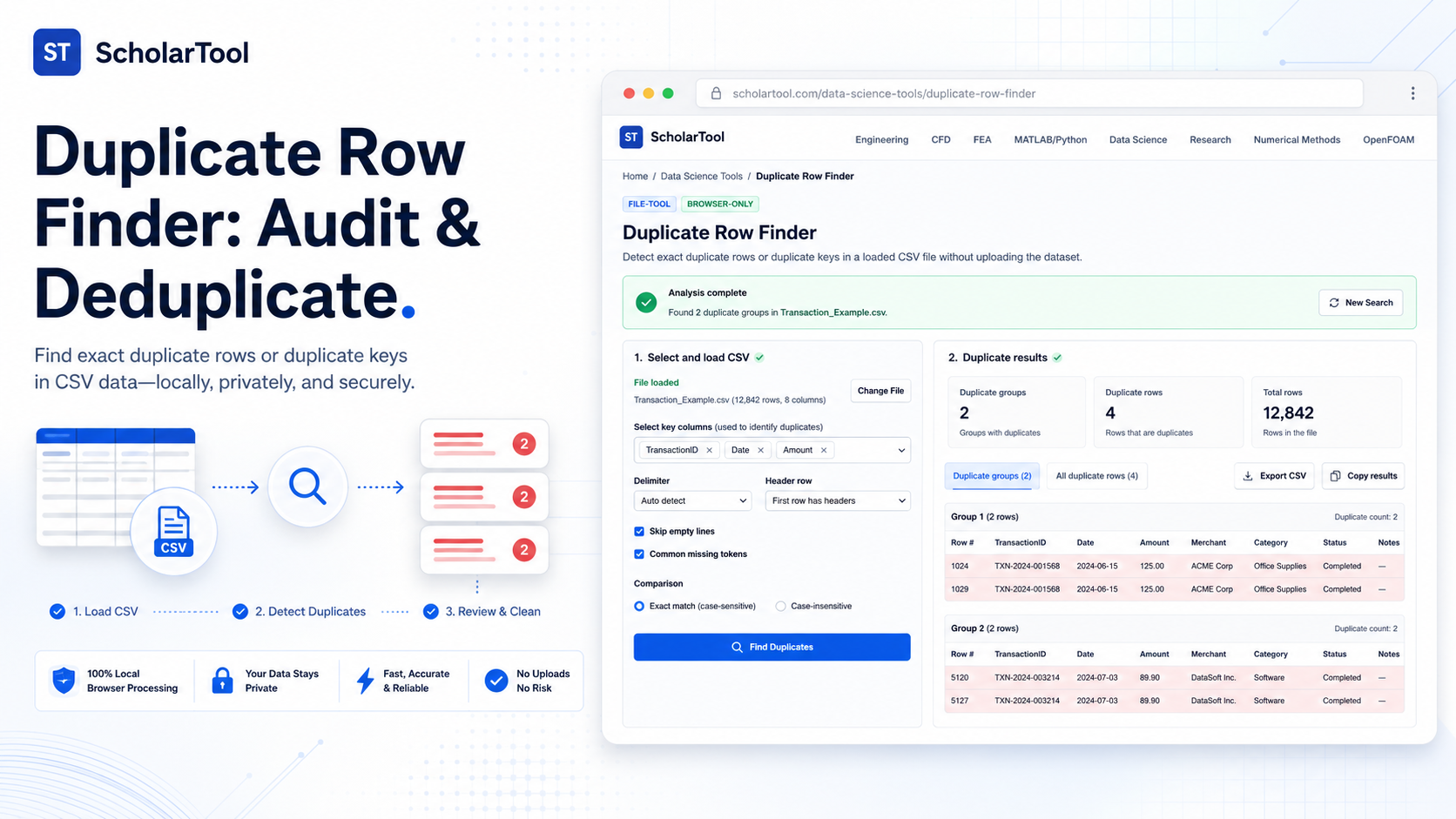
Duplicate Row Finder: Online CSV Deduplication Tool
When I start a new data science project whether I am analyzing sensor readings from a lab or processing a repository of transaction records the “first hurdle” is rarely the complexity of the model; it is the quality of the raw data. As noted in An Introduction to Data Science, data is the raw material at the foundation of the information pyramid. However, raw data is rarely perfect. I find that a single set of redundant records or a double-reported transaction can skew a mean, inflate a count, and lead to results that are numerically flawed.
What I find indispensable for this auditing phase is the Duplicate Row Finder from ScholarTool. It is a deterministic, browser-local utility designed to give you a transparent “math receipt” of your dataset’s redundancies. It prioritizes instructional clarity and data residency, ensuring that your proprietary research values stay on your machine while you decide which records to retain.
What the Duplicate Row Finder Helps You Do
The primary purpose of this tool is to help you move from “noisy data” to a dataset that is fit for purpose. In technical terms, it performs an exact-match audit of either full rows or specific key columns in your CSV.
What I find useful here is the focus on “data sovereignty.” Unlike standard AI-based parsers that might send your files to a cloud-analysis API, this finder works entirely on the client side. It uses the Papa Parse library to handle the heavy lifting of CSV parsing right in your browser tab. This means your case-specific values and internal column names are never submitted to a third-party server.
Inputs You Can Use
The interface is built with a configuration-first layout that ensures your data is read correctly before you ever attempt to find a duplicate.
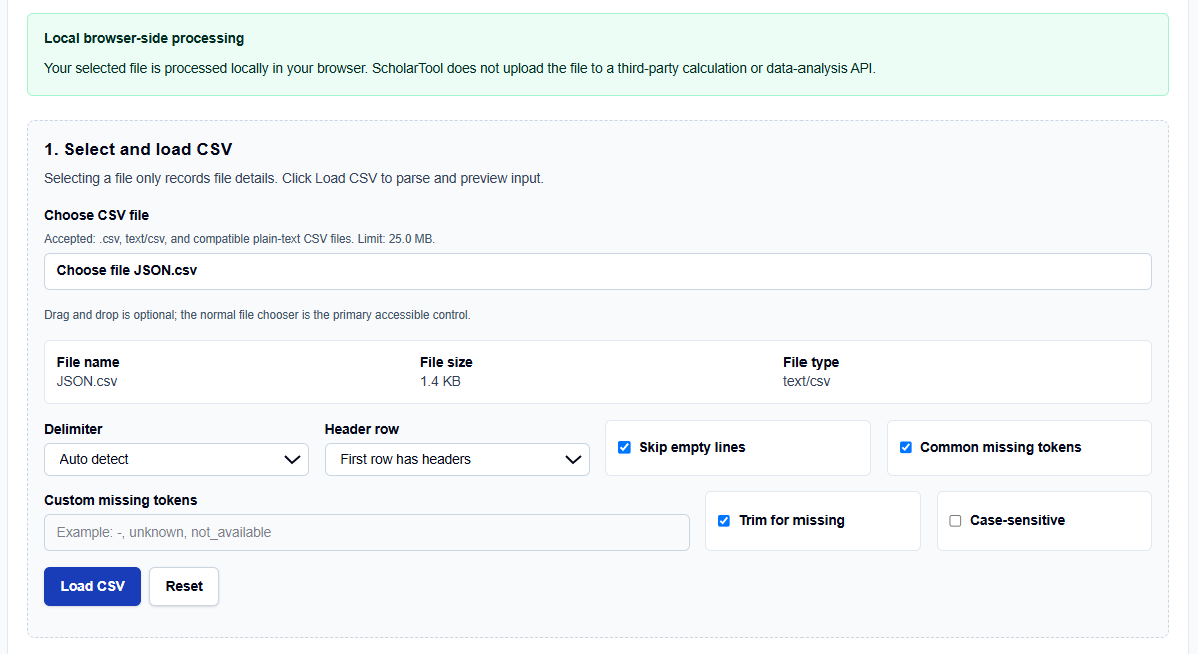
Loading and Delimiters
You begin by selecting your file, with a strict limit of 25.0 MB to maintain browser stability. I like that it offers an Auto detect delimiter mode, but also allows you to explicitly choose Comma, Semicolon, Tab, or Pipe. If your file lacks headers, you can uncheck the First row has headers toggle to ensure the tool treats the top row as actual data.
Match Configuration
A professional feature I frequently use is the Selected key-column matching. Instead of comparing every single column, you can select only the columns that define a “unique” record, such as an ID and a timestamp. I also find the Trim whitespace option critical; it ensures that a trailing space at the end of a field doesn’t prevent an exact match from being detected.
How I Use the Tool
My typical workflow begins when I receive a new, uncleaned CSV from a repository like UCI. I open the Duplicate Row Finder.
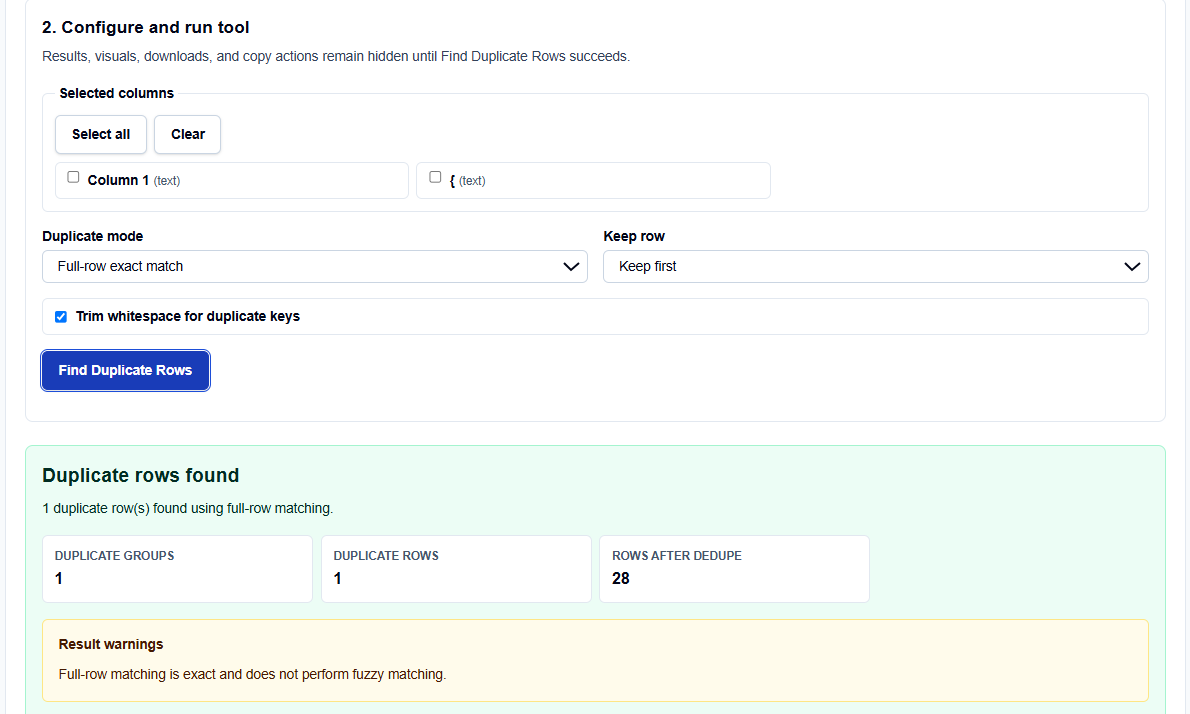
Once I have loaded the file, I review the column list. I find it practical that the results and visuals remain hidden until I click Find Duplicate Rows. If I am looking for double-entries in a sensor log, I select the timestamp and sensor_id as my keys. If the tool identifies several duplicate groups, it acts as a professional signal that I need to investigate the data source for reporting errors before proceeding with my analysis.
A Comparative Perspective: Browser-Local vs. Programmatic Cleaning
From a professional perspective, you have several ways to handle deduplication:
- Pandas (df.drop_duplicates()): Incredibly powerful for large datasets, but requires a Python environment and manual coding for every check.
- Excel “Remove Duplicates”: Accessible, but often a “black box” that doesn’t show you exactly which rows were removed or why.
- The Duplicate Row Finder: Best for quick, private audits of datasets up to 200,000 rows. It provides an immediate visual summary of duplicate groups and row positions without the overhead of writing a script.
Understanding the Results
The result section provides the Deduplicated Preview first, showing you what the data will look like after processing. For a professional audit, I focus on:
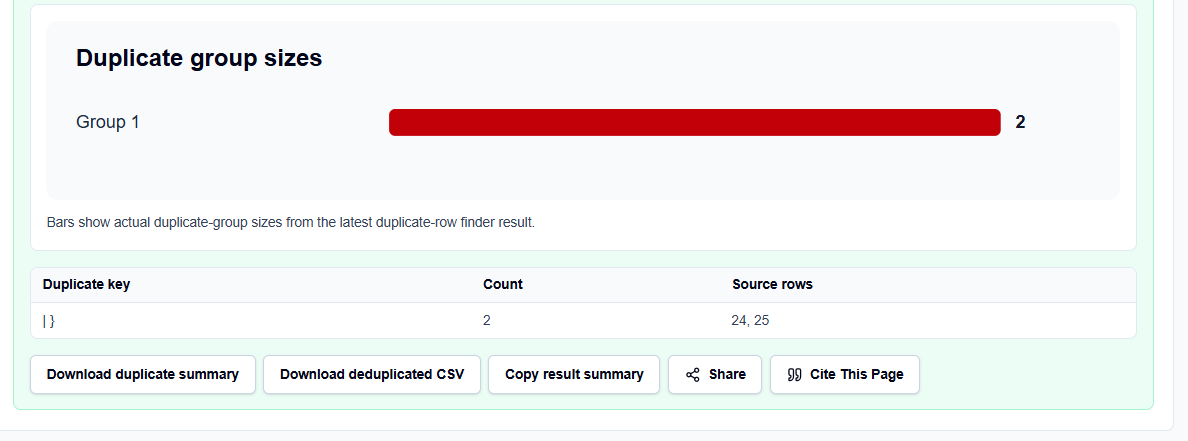
- Duplicate Groups Table: Identifies which rows are identical and lists their original positions in the file.
- Keep Rules: You can toggle between Keep first (retains the earliest record) and Keep last (retains the latest).
- Deduplicated Export: I frequently use the export feature to download a cleaned CSV that preserves the original source-row order after the keep rule is applied.
A Practical Example: The Transaction CSV
Suppose I load a transaction dataset where the invoice_id and line_number columns should be unique. After clicking the action button, the tool reports three duplicate groups where the same invoice line was recorded twice due to a system glitch. I choose the “Keep first” rule to maintain the original record and download the cleaned CSV, ready for my final analysis in R or MATLAB.
Mistakes I Would Avoid
One common pitfall is using full-row matching when duplicate identity is defined by a business key. If a user changes their email but keeps the same ID, a full-row match won’t catch the duplication, but a key match on “user_id” will.
Another mistake is expecting fuzzy name matching. This tool intentionally uses exact matching to avoid unsafe automatic merges of similar but distinct records.
Try the Free Duplicate Row Finder
Before you manually scroll through a spreadsheet hunting for redundant entries, take a minute to generate a transparent data quality audit. It is the fastest way to ground your preprocessing in verified logic while maintaining total browser privacy.
Try the Duplicate Row Finder here.
To complete your data science toolkit, you may also find the CSV Data Profiler or the Missing Value Analyzer essential for your workflow.
FAQ
1. Does the finder support fuzzy duplicates (like “John Smith” vs “Jon Smith”)?
No. This tool deliberately performs exact matching after optional whitespace trimming. This prevents the risk of unsafe automatic merges associated with record-linkage scoring.
2. What is the difference between “Keep first” and “Keep last”?
“Keep first” retains the record that appears earliest in your source file within a duplicate group. “Keep last” retains the record that appears closest to the end of the file.
3. Are my research files uploaded to ScholarTool?
No. All processing is performed locally in your browser using the File API and JavaScript. No file data is sent to a third-party server or analysis API.