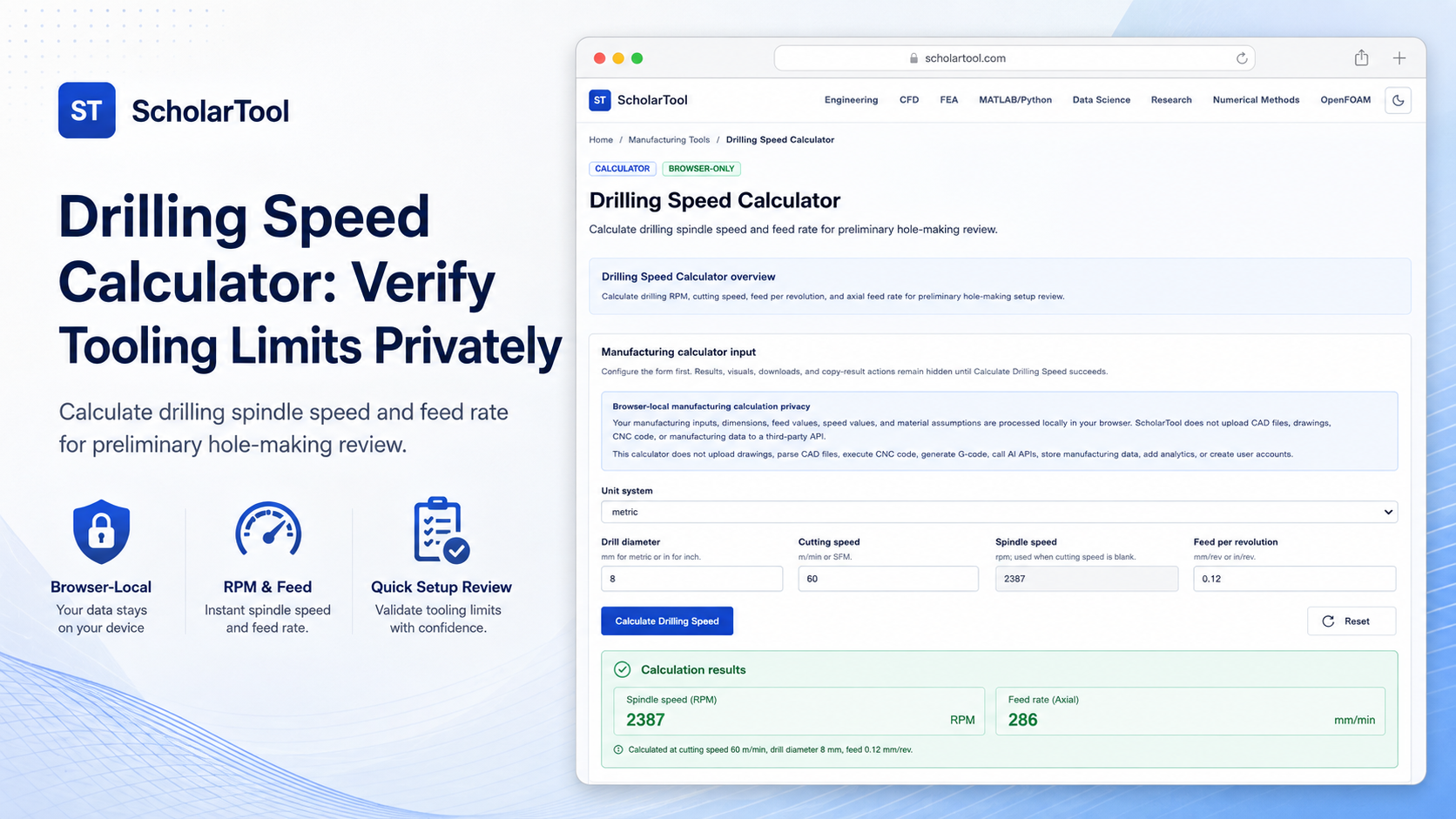
Drilling Speed Calculator: Drill RPM & Feedrate Sizer
When you are preparing a manual or CNC hole-making operation, calculating the correct drilling speed and axial feedrate is a constant point of friction. Every machinist or process planner must determine these starting parameters to prevent tool breakage or premature wear. Guessing these basic drilling values without a validated math receipt leads to chipped cutting lips, melted drill points, or scrapped workpieces.
To solve this pre-production planning bottleneck with high precision and complete confidentiality, I use the Drilling Speed Calculator on ScholarTool. This browser-only utility calculates drilling RPM, cutting speed, feed per revolution, and axial feed rate. Because all calculations run entirely in your local browser tab state using client-side TypeScript, your proprietary material notes, hole sizes, and manufacturing parameters are never uploaded to a third-party server, ensuring 100% data privacy.
What the Drilling Speed Calculator Helps You Do
This tool acts as a steady-state drafting and process planning takeoff aid during early setup reviews. Rather than forcing you to perform manual calculations or flip through heavy handbooks, it organizes standard drilling formulas into a clean, human-readable layout.
What I find useful here is how the calculator lets you toggle between metric and imperial dimensions instantly. You can choose to find your spindle speed from a known surface speed or reverse-calculate surface speed from a known RPM. It provides an immediate math receipt to check your twist-drill engagement parameters before you begin G-code programming or shop floor execution.
Inputs You Can Use
The interface features a structured, configuration-first layout to ensure your setup assumptions are sound:
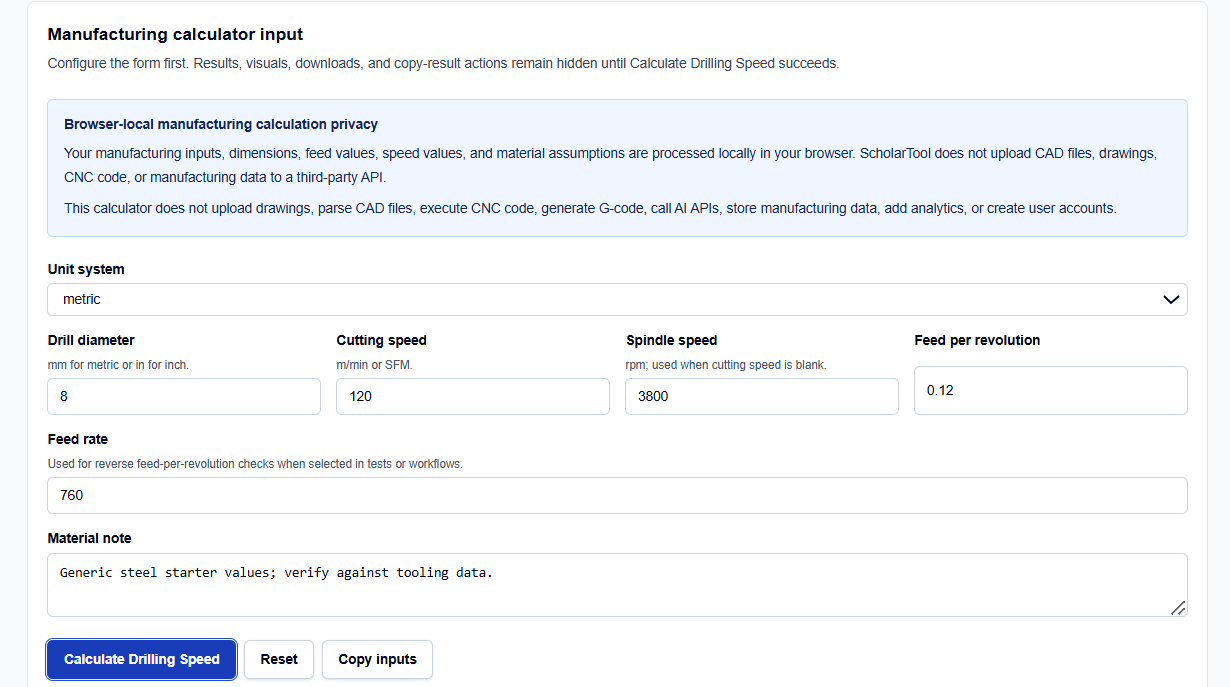
- Unit System: Sets metric (mm and m/min) or imperial (inches and SFM) calculation modes.
- Drill Diameter: Enter the nominal diameter of your twist or spade drill.
- Cutting Speed or Spindle Speed: Enter the surface speed (\(Vc\) or SFM) to solve for RPM, or input spindle RPM directly to check surface speeds.
- Feed per Revolution: Specify the axial distance the drill advances per revolution (mm/rev or in/rev).
- Feed Rate: Used for reverse feed-per-revolution checks when selected.
- Material Note: An optional text box to record custom notes like material-specific guidelines or coolant requirements.
If your data is available in this form, you can enter the nominal drill size, cutting speed, and axial feed per revolution directly.
How I Use the Tool
I open the Drilling Speed Calculator in my browser window. First, choose the default unit standard.
When I enter our raw tooling dimensions and material limits, I verify that tool diameter and cutting speed match our supplier’s starting recommendations. Once your parameters are set, click Calculate Drilling Speed. The result section helps you review the spindle speed and table feedrate instantly. Results, warnings, and CSV/Markdown downloads remain completely hidden until this succeeds. If you edit any coordinate afterward, the output panel automatically hides to prevent transcribing stale dimensions.
Understanding the Results
The result section helps you verify your hole-making parameters by presenting several key elements:
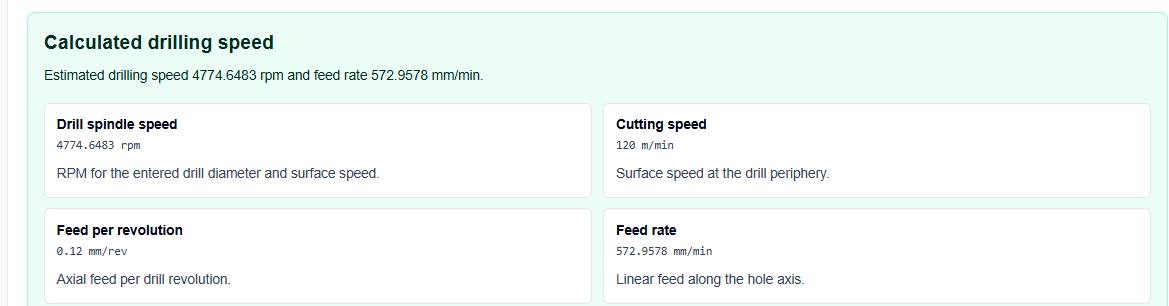
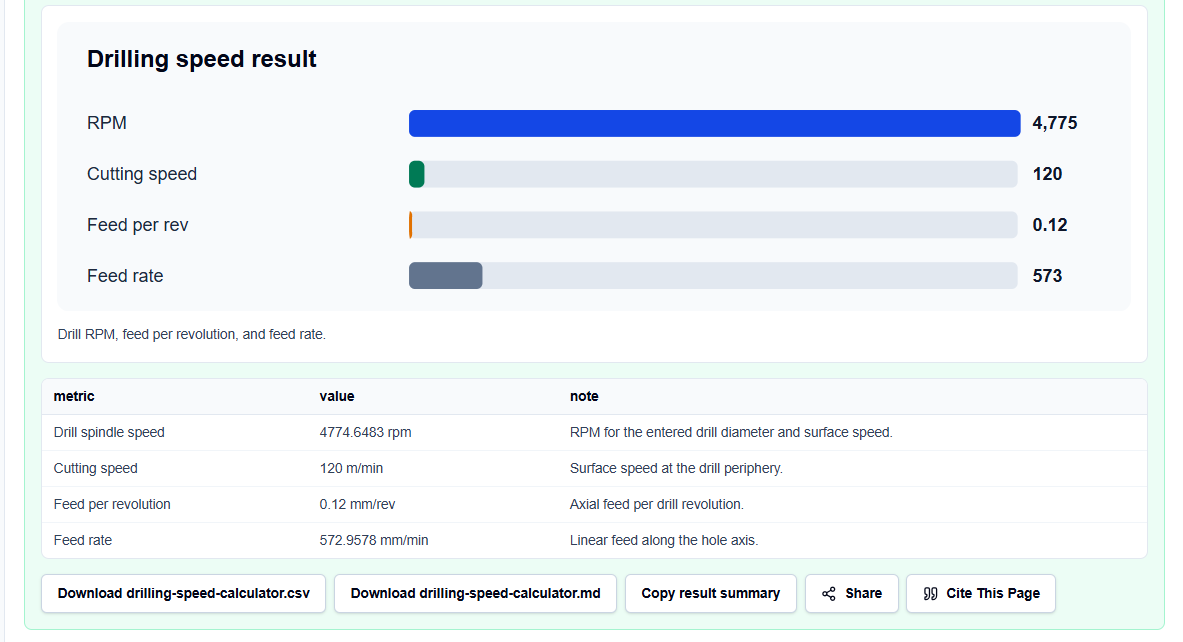
- Component Sizing: Solves the standard surface speed equation and feedrate based on your feed per revolution and RPM.
- Visual Engagement Panel: Displays a clean visual representation of the tool.
- Data Export: Formats the complete calculation block into copyable Markdown or downloadable CSV files for offline record keeping.
It omits peck depths, point angles, chisel edge corrections, coatings, or coolant variables, keeping calculations highly responsive.
A Practical Example: Sizing a Metric Drilling Operation
Consider a typical check to find starting speeds and feeds for a standard metric twist-drill.
We configure the inputs:
- Unit System: metric.
- Drill Diameter: 8 mm.
- Cutting Speed: 60 m/min.
- Feed per Revolution: 0.12 mm/rev.
Upon clicking calculate, the browser-local script applies standard cutting equations: [RPM = \frac{1000 \times V_c}{\pi \times D} = \frac{1000 \times 60}{\pi \times 8} \approx 2387.3\text{ RPM}] [V_f = f_{rev} \times RPM = 0.12 \times 2387.3 \approx 286.5\text{ mm/min}] The result section helps you verify a starter relationship of about 2387 RPM and 286 mm/min.
Mistakes I Would Avoid
One critical mistake is using feed per tooth instead of feed per revolution. Twist drills are multi-point tools, but feeds are specified per revolution, so entering per-tooth chip loads directly causes severe underfeeding.
Another major pitfall is ignoring work hardening and chip packing in deep holes. For holes deeper than the drill diameter, you must apply peck cycles to clear chips and prevent packing, or the tool will snap.
Finally, avoid leaving cutting speed unchanged when diameter changes. Smaller drills require significantly higher spindle RPM to maintain constant surface speed, so always recalculate when you swap tools.
Try the Free Drilling Speed Calculator
To eliminate manual geometric conversion errors and secure your shop data, try this secure tool today:
Try the Drilling Speed Calculator on ScholarTool Chaining this review with our CNC Feed and Speed Calculator or Tap Drill Calculator completes your planning. You can also plan cycle runtimes with our Machining Time Calculator or calculate material volume using our Material Removal Rate Calculator to finish your manufacturing review.
FAQ
1. Does the Drilling Speed Calculator correct for peck depth, point angle, or drill coatings?
No. This tool calculates steady-state rotary relationships based on standard deterministic surface-speed and feedrate equations. Complex compensations for peck depth, point angle, chisel edge correction, coatings, or coolant variables are unsupported.
2. Are my proprietary material selections, hole sizes, or speed values uploaded to ScholarTool?
No. All calculations are executed entirely locally on your device within your active browser tab using client-side TypeScript logic. ScholarTool does not upload drawings, CAD files, CNC program values, or coordinates to external servers or third-party APIs.
3. Why do the output results automatically clear if I modify an input value?
This is a built-in safety safeguard. If you edit any drill diameter, surface speed, or feed per revolution, the results card automatically hides until you click “Calculate Drilling Speed” again. This prevents you from copying outdated or inconsistent data into your CAM programs.