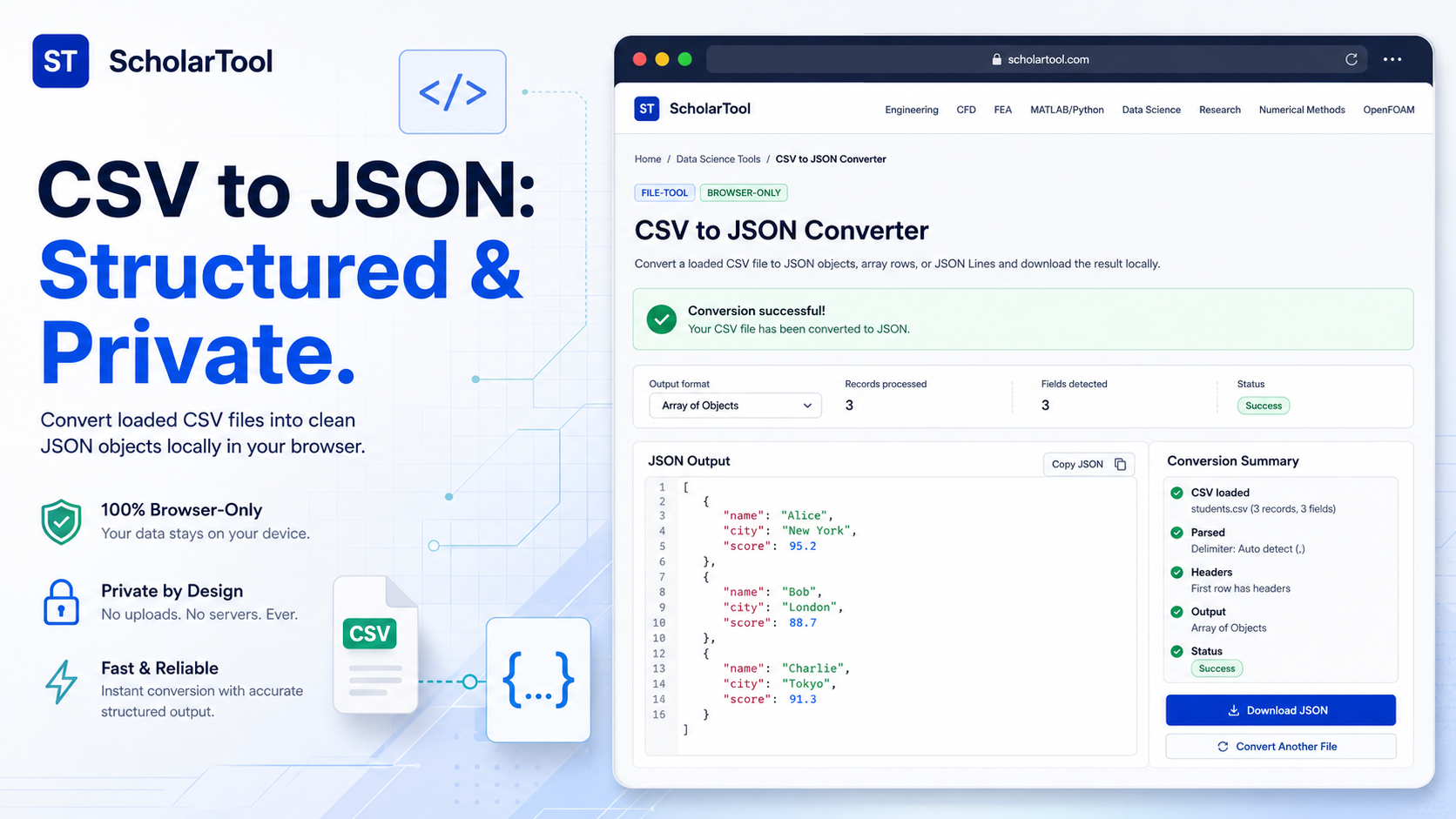
CSV to JSON Converter: Objects, Arrays & JSON Lines
When I am moving data from a legacy spreadsheet to a modern web application whether I am building a static data fixture for a React component or preparing a dataset for a NoSQL database like MongoDB the “first point of friction” is the format mismatch. As noted in An Introduction to Data Science, the world is full of different data formats, some proprietary like Excel and some open like the “lowly but infinitely useful” CSV. However, CSVs are flat. For web-oriented processing, I often need the hierarchical structure of JavaScript Object Notation (JSON).
What I find indispensable for this conversion phase is the CSV to JSON Converter from ScholarTool. It is a deterministic, browser-local utility designed to give you a “math receipt” of your transformation without the risk of uploading proprietary research to an external server. It prioritizes instructional clarity and data residency, ensuring that your case-specific column names and internal research variables stay on your machine while you prepare them for your application.
What the CSV to JSON Converter Helps You Do
The primary purpose of this tool is to help you move from a flat, row-based structure to a flexible, object-oriented format. In technical terms, it parses a loaded CSV and converts it into your choice of JSON Objects, Array rows, or JSON Lines.
What I find useful here is the focus on “data sovereignty”. Unlike standard cloud-based converters that might send your files to a cloud-analysis API, this tool works entirely on the client side using the Papa Parse library. This means your sensitive research values even those involving confidential web logs or financial records never leave your browser tab. It addresses the common “garbage in, garbage out” problem by providing a conservative type conversion that ensures numeric-looking identifiers don’t lose their meaning during the shift.
Inputs You Can Use
The interface is built with a configuration-first layout to ensure your data is read correctly before you ever commit to a JSON export.
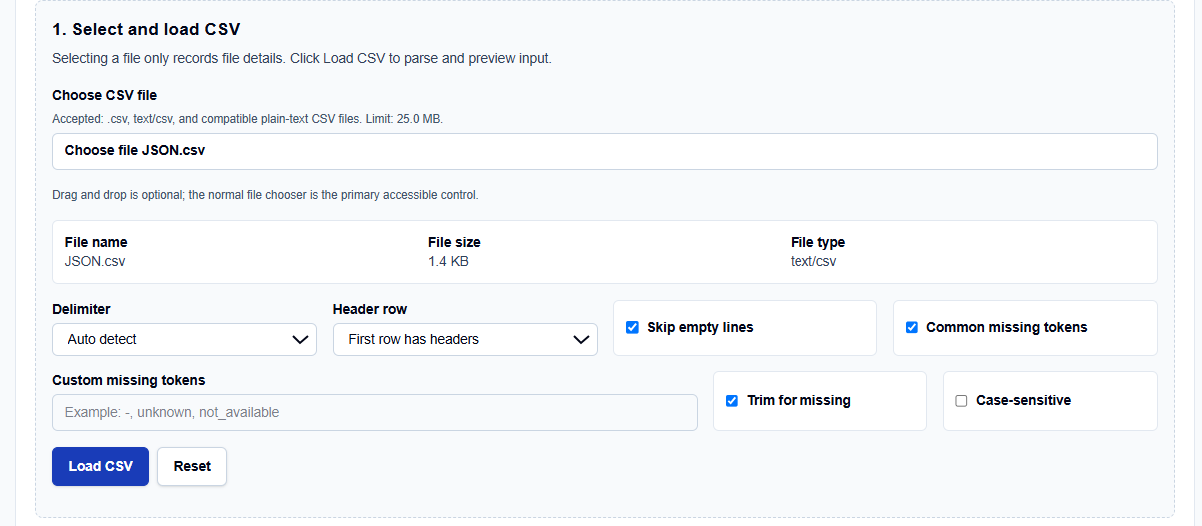
Loading and Delimiters
You begin by selecting your CSV file, which has a limit of 25.0 MB to maintain browser stability. I like that it offers an Auto detect delimiter mode but also allows you to explicitly choose Comma, Semicolon, Tab, or Pipe. If your file lacks a header row, you can uncheck the First row has headers toggle to ensure the tool doesn’t misidentify your first data point as an object key.
Custom Token Detection
A professional feature I frequently use is the Custom missing tokens field. As we know from data science fundamentals, missing data isn’t always “NA”; it might be coded as “null” or “999”. The tool allows you to define these tokens and even Trim for missing entries to ensure your JSON output remains consistent with your application’s schema.
How I Use the Tool
My typical workflow begins after I have downloaded a raw dataset from a repository or a sensor log. I open the CSV to JSON Converter.
Once I have loaded the file, I review the configuration options. I find it practical that the results and download actions remain hidden until I click Convert to JSON, preventing me from acting on stale data. If I am preparing a dataset for streaming or line-oriented processing, I select the JSON Lines mode. I then review the “Conservative type conversion” toggle. This is critical: if I have a column of product IDs that start with zero (e.g., “00123”), enabling this ensures the converter keeps them as strings rather than “cleaning” them into the number 123.
Understanding the Results
The result section provides a JSON Output preview first, identifying the keys and values based on your chosen method. For a professional audit, I focus on:
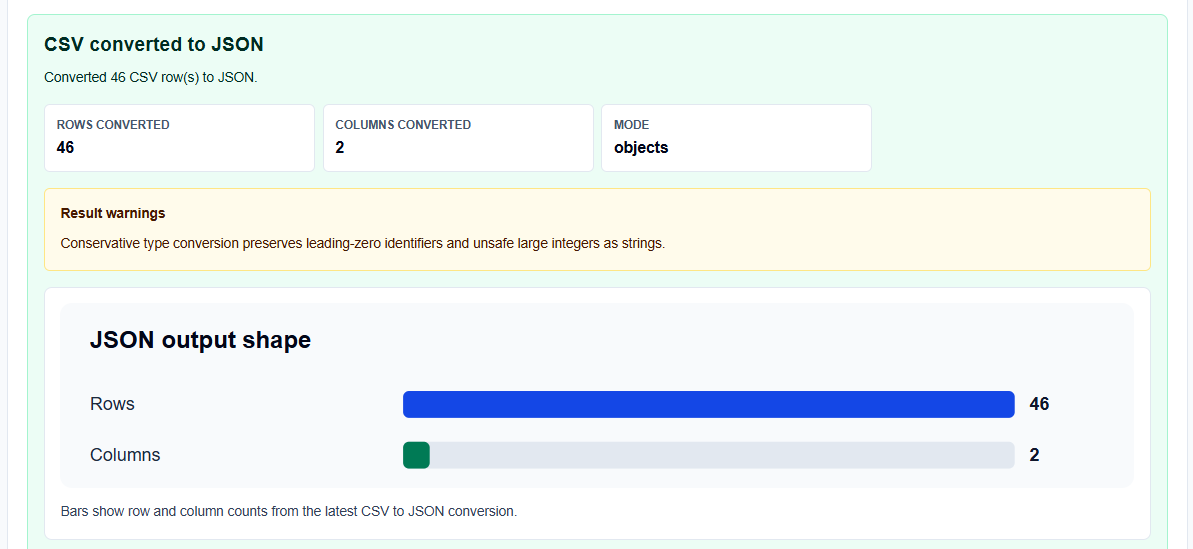
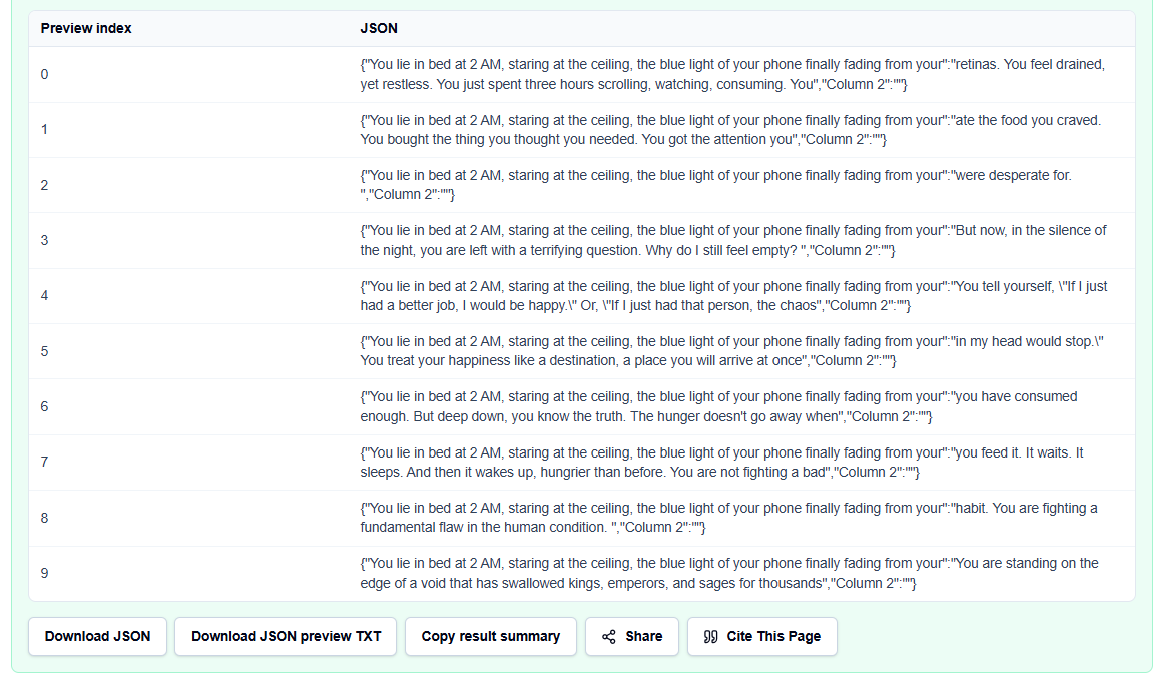
- Array of Objects: This uses column names as keys, which is the most common format for web APIs.
- Array Mode: This emits a columns list plus row arrays, which can be smaller and more schema-like for bulk transfers.
- JSON Lines: This stores one JSON object per line, which is useful for large-scale data imports where you want to avoid loading a single massive array into memory.
- Download Artifact: I always use the download button for large files rather than copying the bounded preview to avoid browser lag.
A Practical Example: The Product ID List
Suppose I load a CSV export with product_id, price, and active columns. If the IDs are “05”, “06”, and “07”, a standard converter would often turn these into the integers 5, 6, and 7. By using the ScholarTool converter with conservative typing, I notice that the IDs remain “05”, “06”, and “07” in the JSON objects. This “math receipt” allows me to download the JSON for a static data fixture, knowing my identifiers are intact and ready for my code.
Mistakes I Would Avoid
One common pitfall is converting leading-zero IDs into numbers. If you lose those zeros, your database joins will fail. I always keep “Conservative type conversion” active for identifier columns.
Another mistake is using object mode without checking for duplicate headers. If you have two columns named “Date”, the object mode will overwrite the first one during conversion. I use the CSV Data Cleaner to standardize my headers before I convert.
Try the Free CSV to JSON Converter
Before you manually rewrite a CSV into a JavaScript array, take a minute to generate a transparent format audit. It is the fastest way to ground your data preparation in structured logic while maintaining total browser privacy.
Try the CSV to JSON Converter here.
To complete your data science toolkit, you may also find the CSV Data Profiler or the Categorical Encoding Helper essential for your workflow.
FAQ
1. What is the difference between JSON Objects and JSON Lines?
JSON Objects (Array of Objects) is a single array containing multiple maps of keys and values. JSON Lines (.jsonl) stores one individual JSON object on each line without a surrounding array, which is better for streaming large datasets.
2. Are my proprietary CSV files uploaded to ScholarTool?
No. All processing happens locally in your browser using the File API and JavaScript. ScholarTool does not submit your data to any third-party calculation or data-analysis API.
3. Why is my file conversion capped at 200,000 rows?
The browser-local workflow enforces this limit to prevent your browser tab from freezing while rendering the JSON preview and processing the data in-memory.